
Viewing your website at WebOké before transferring the domain name
Have you already put your website on WebOké, while the domain name is still with your current provider? Then when you type in your domain you'll still see the old site. With the free tool Test your website before moving you can view the new version with us even before you move, without changing anything in your DNS. Your current site simply stays online and you don't need an account for it.
In this article you'll read how it works and how to set it up on Windows and on a Mac, with screenshots and short videos for each step.
Why do I still see the old site?
A domain name always points to one place. Your computer first asks the nameservers of your domain at which address the website is located. As long as the domain is still with your current provider, they'll give the address of the old server. Website builders often solve this with the hosts file, but that's tricky and not something for a customer to do.
What does the tool do?
Your browser requests the website via our proxy, proxy.weboke.nl. That proxy looks up the address of your domain only at WebOké's nameservers. As a result, you end up at the version hosted with us, exactly as if you had edited the hosts file. Only the domains you add in the tool go via the proxy; all other websites go directly as usual.
Step 1: get your personal address
- Put your website in your package at WebOké, for example via FTP or File Manager in DirectAdmin.
- Go to Test your website before moving and enter your domain name. The domain must already be in a package with us; the move itself doesn't need to be done yet.
- You'll get a personal address that starts with
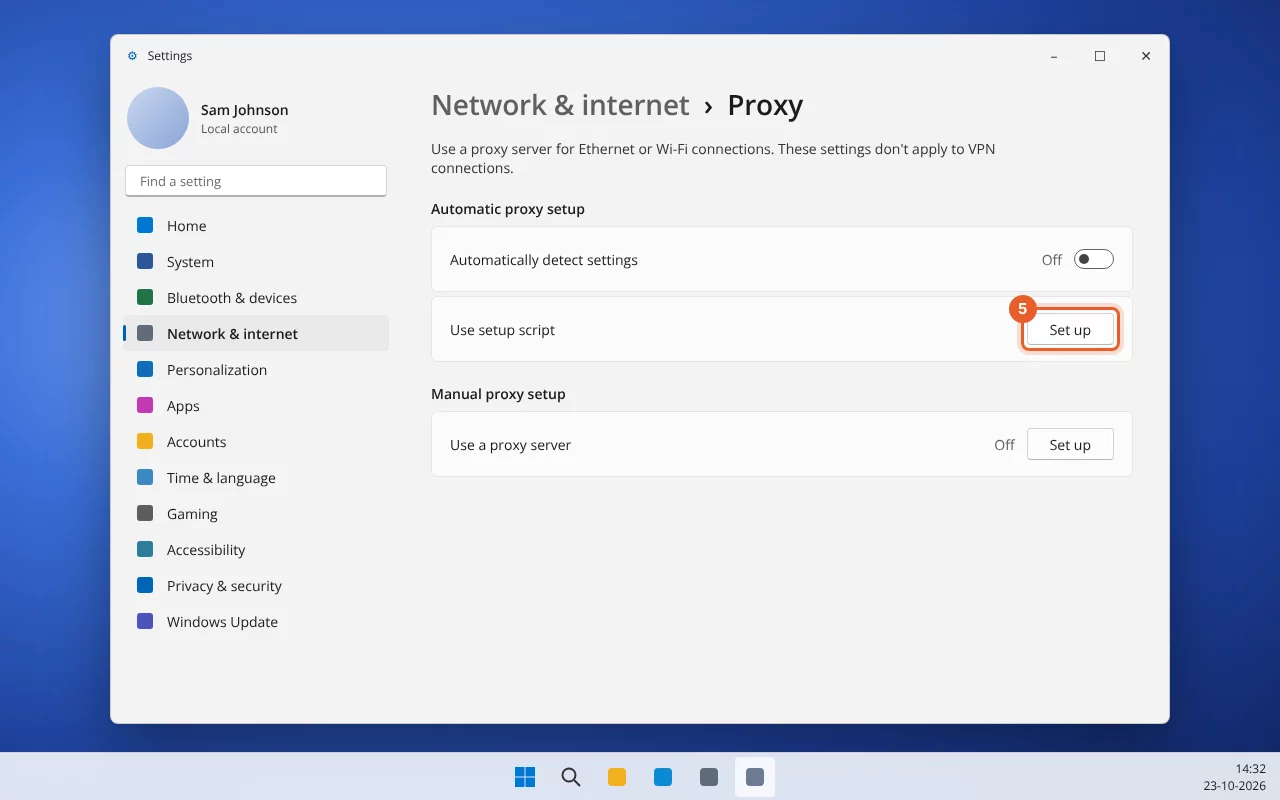
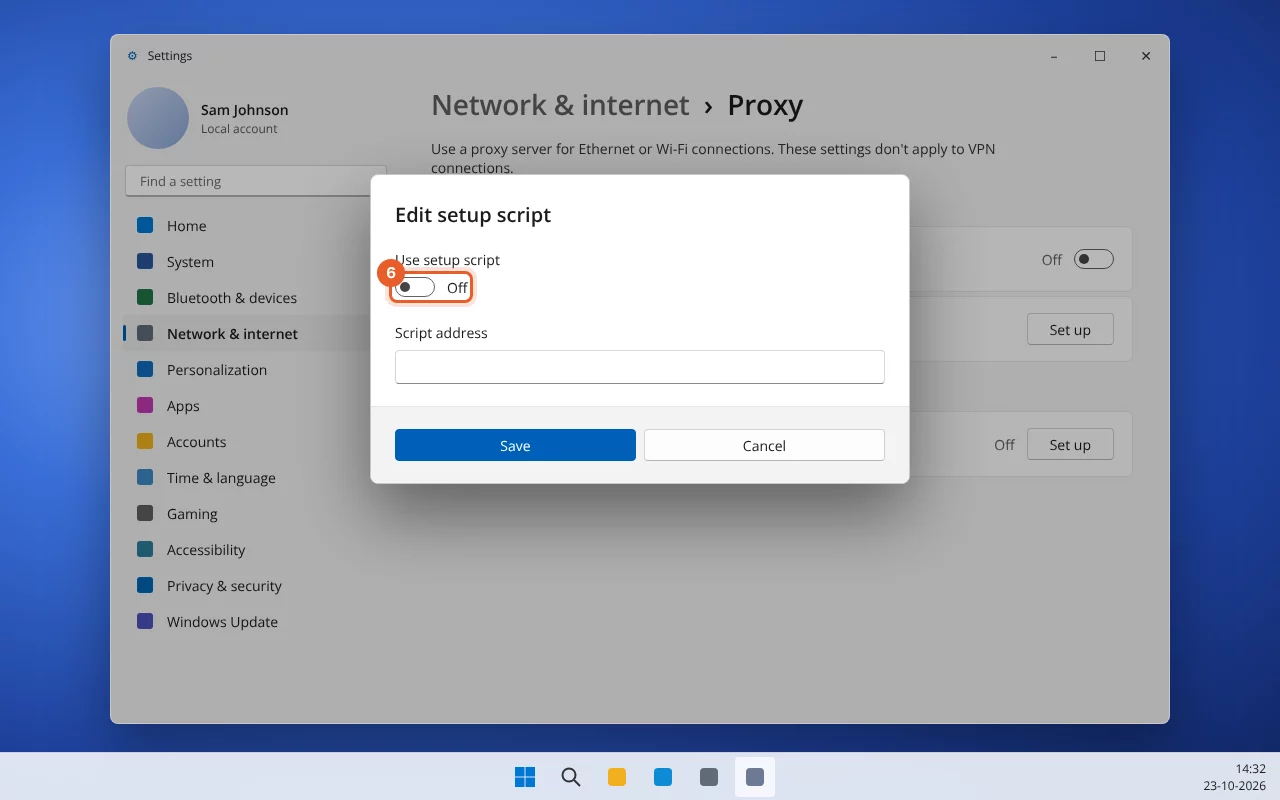
https://proxy.weboke.nl/pac/. Click Copy. You'll paste this address into your computer's proxy setting in a moment.
Do not paste the address into your browser's address bar: it won't do anything there. It belongs in the proxy setting, as shown below.
Wifi, network cable or USB network: which connection?
Your computer can be online via wifi, or via a network cable. That cable sometimes plugs directly into your computer, but often into a USB network adapter or a docking station. That matters for where you put the setting:
- Windows: the proxy setting applies to wifi and the cable at the same time, including via a USB adapter or dock. So you set it up just once.
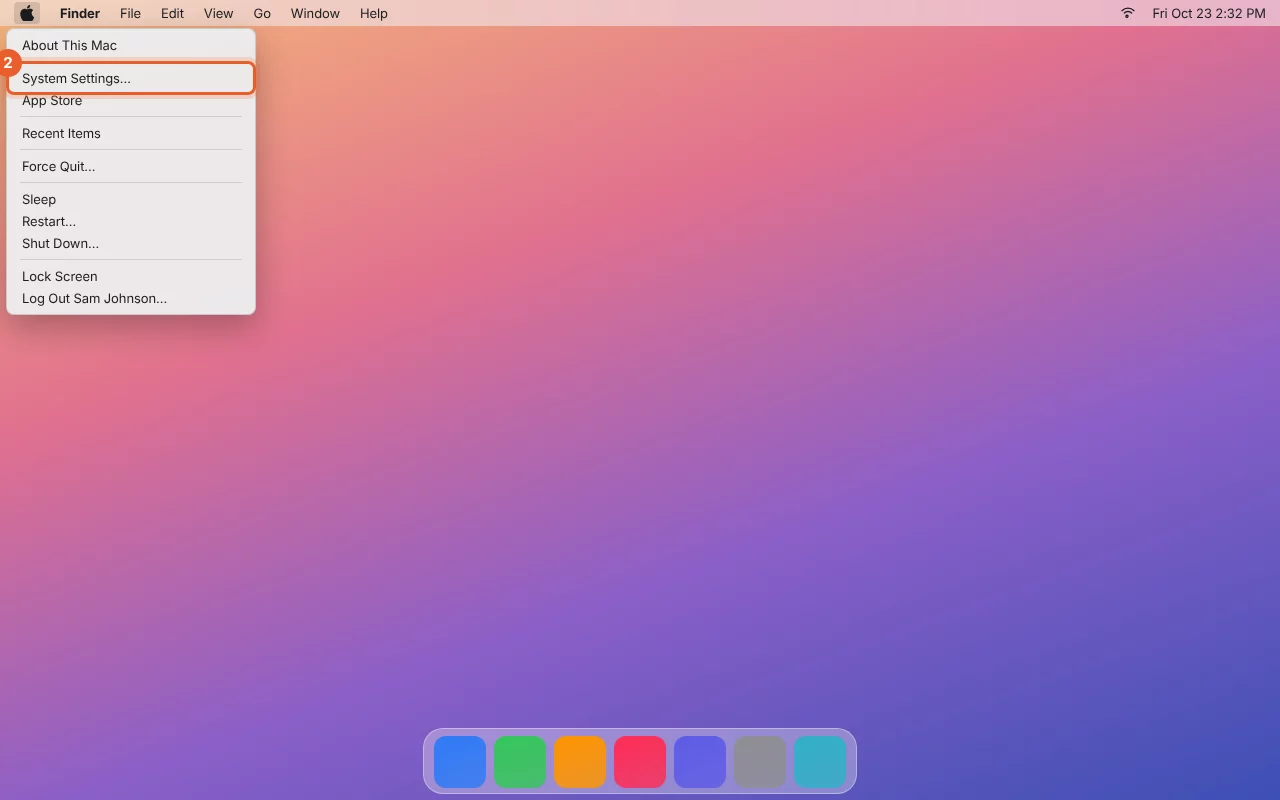
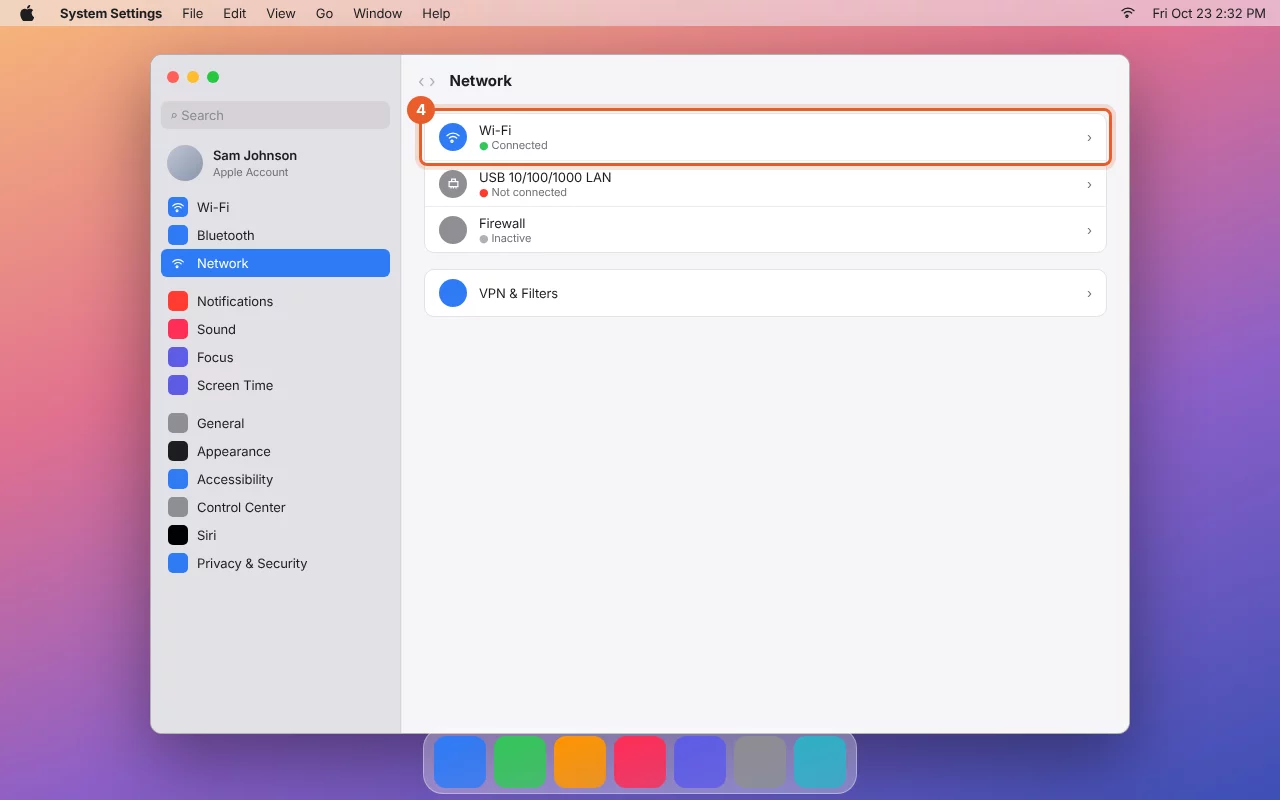
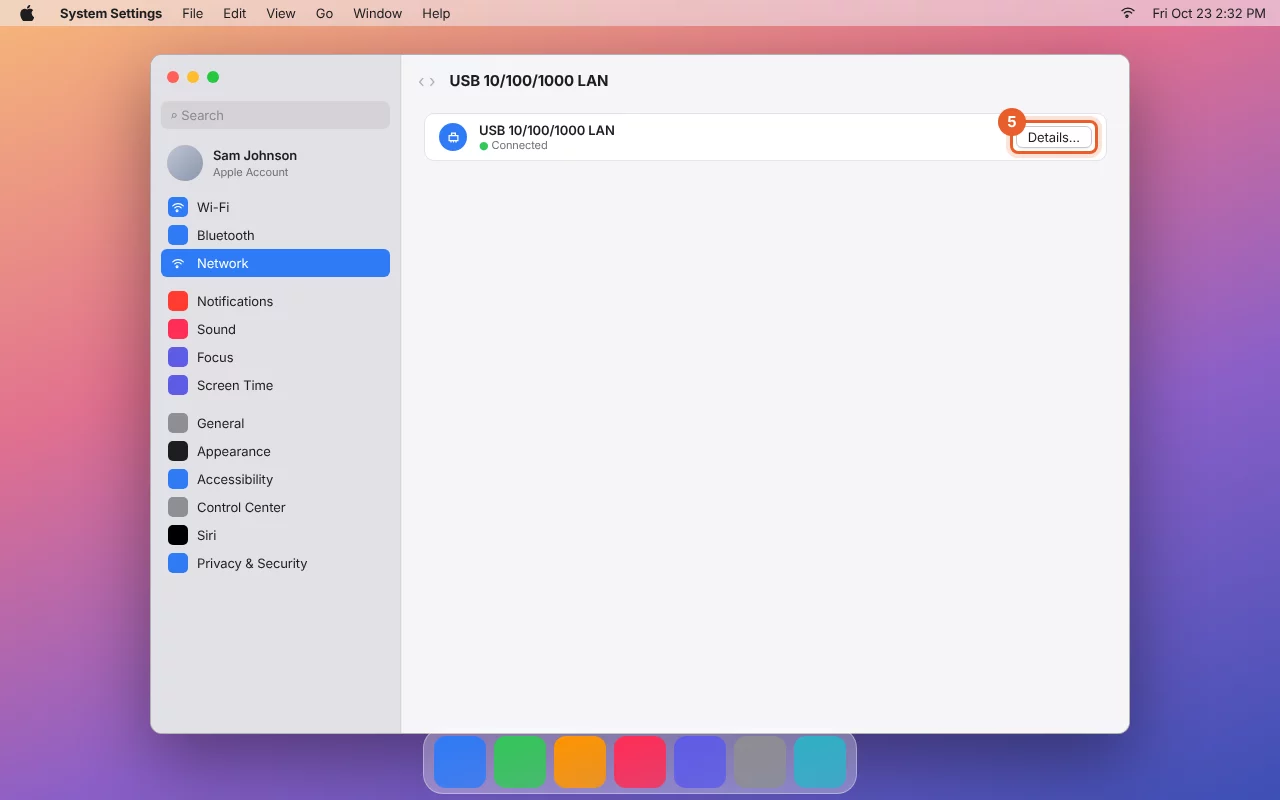
- Mac: each connection has its own proxy setting. Set it up for the connection with the green dot (Connected) under System Settings > Network. That could be Wifi, but also Ethernet, USB 10/100/1000 LAN, Thunderbolt Ethernet or the name of your dock. If you switch connections later, for example from wifi to your dock at the office, set it there too. If you see multiple green dots, enable it for all of them.
- Firefox (Windows and Mac) has its own proxy setting, separate from the connection. That's the easiest way if you switch often or use a VPN.
Step 2 on Windows (Chrome and Edge)
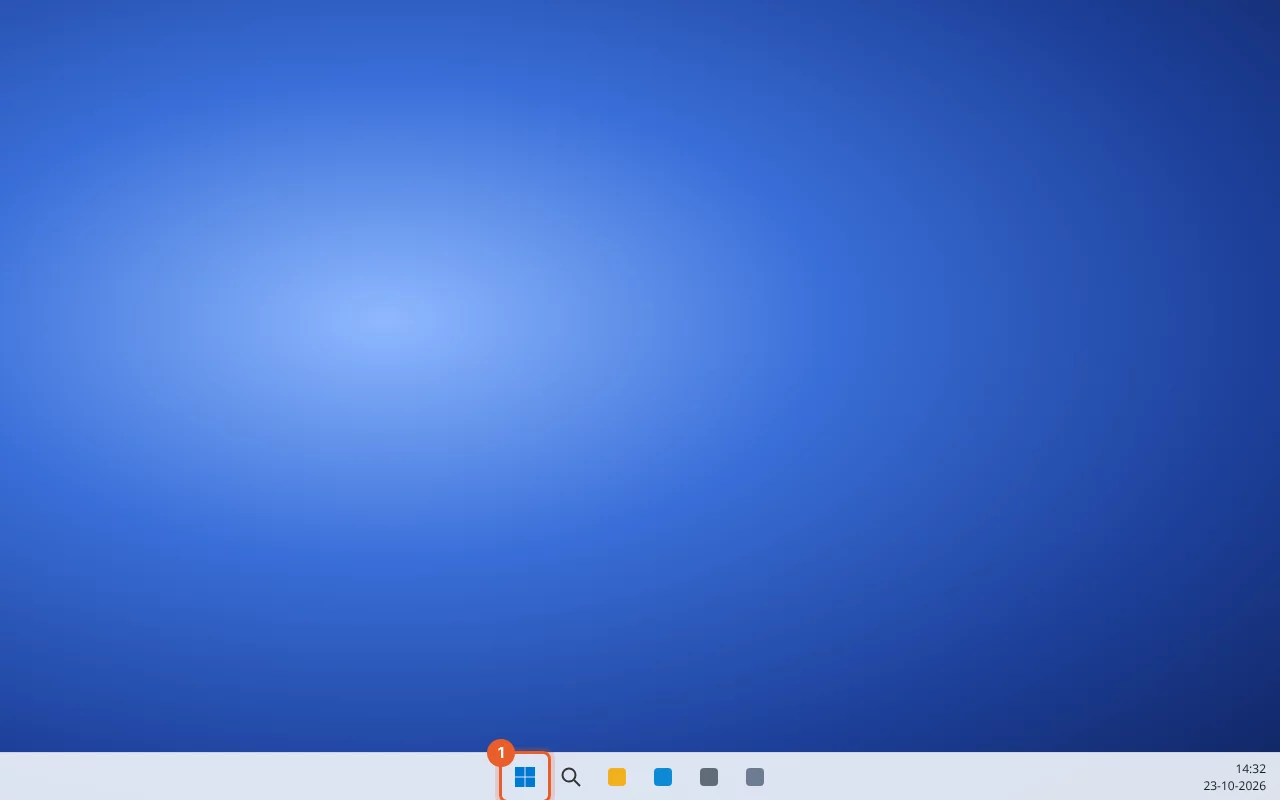
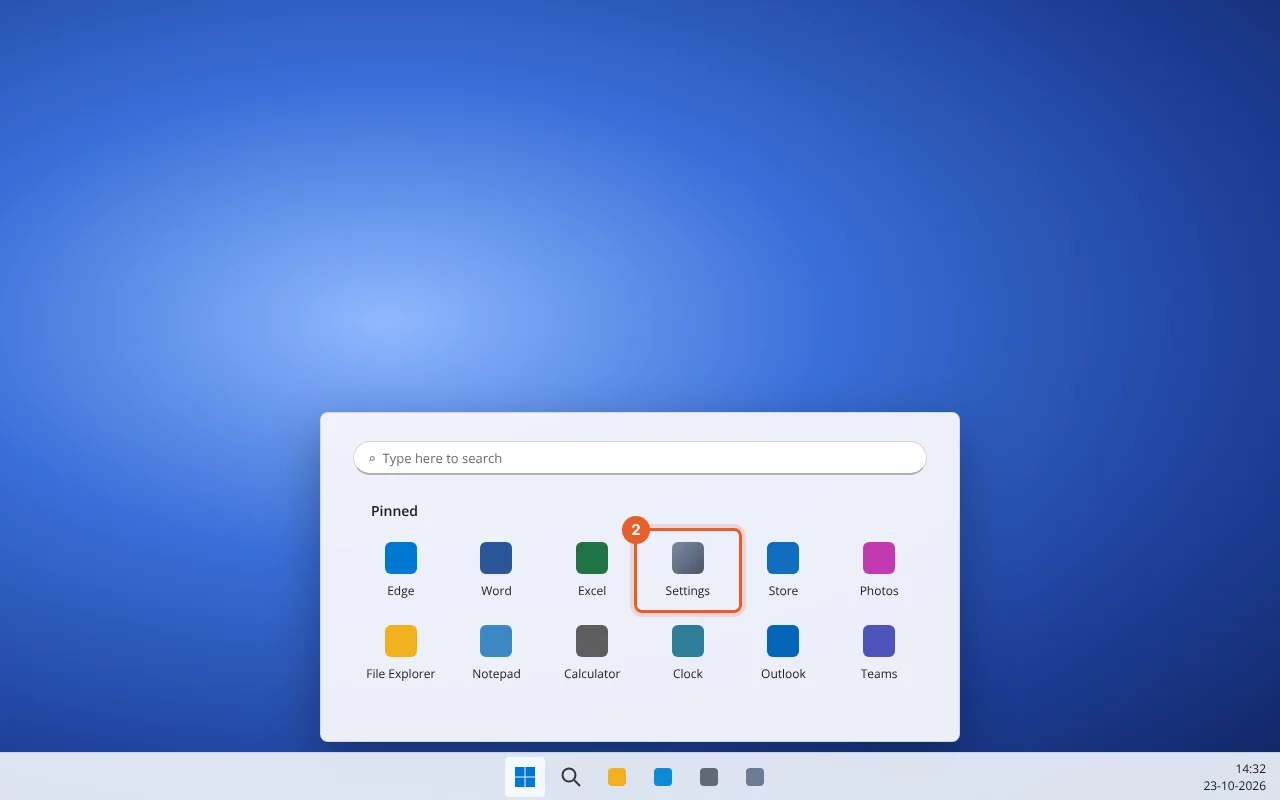
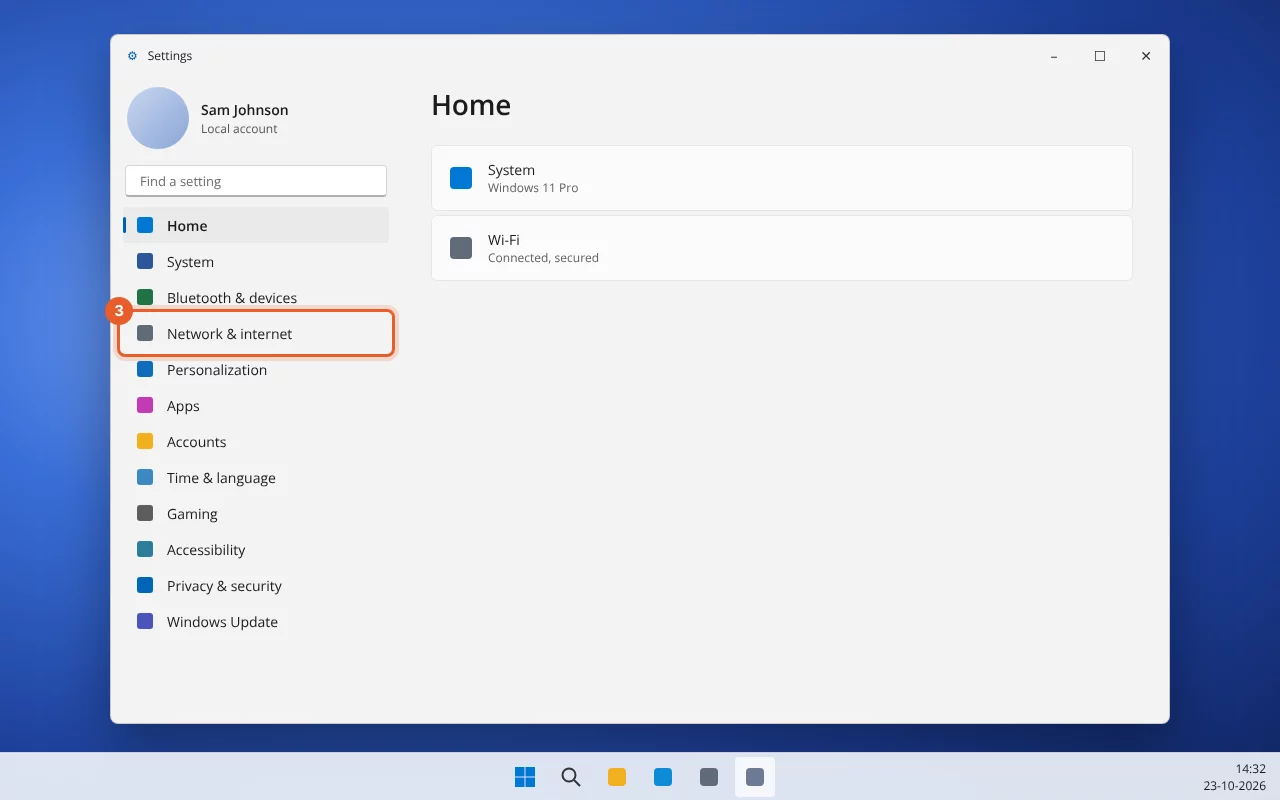
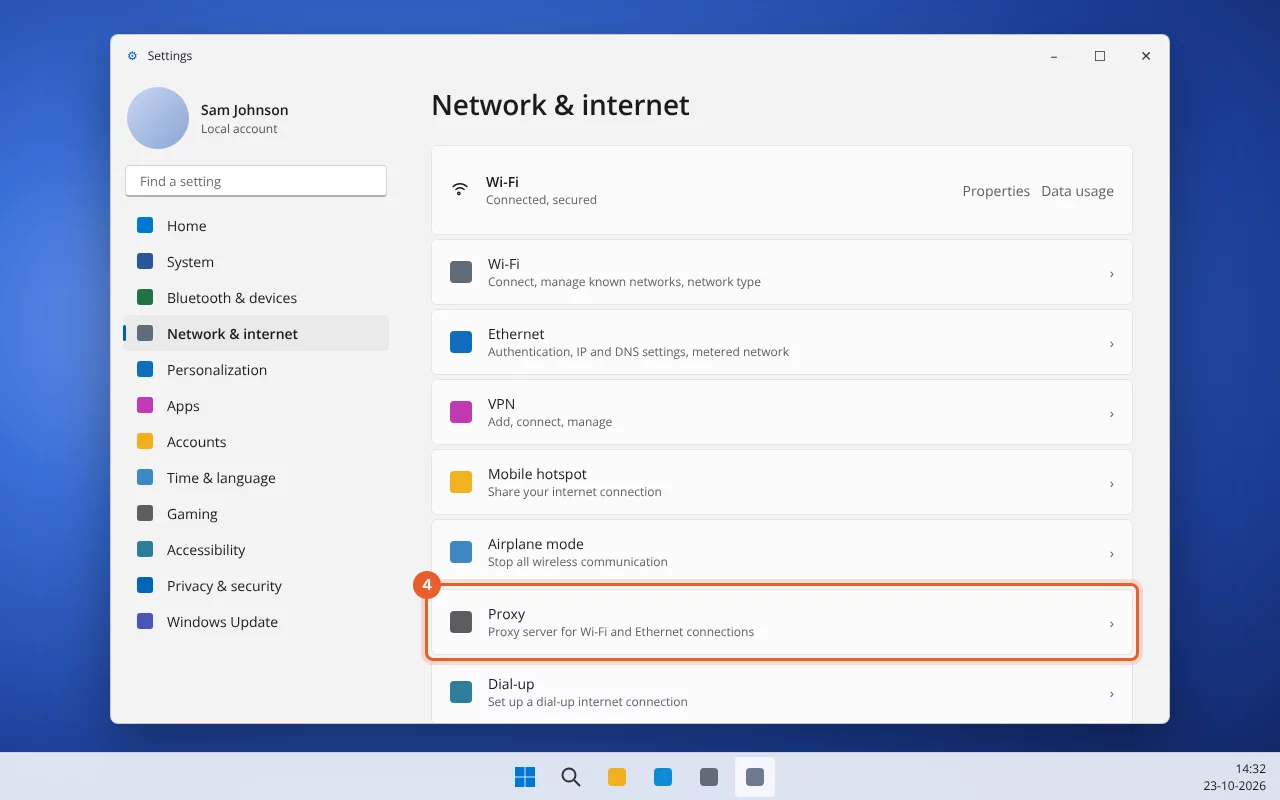
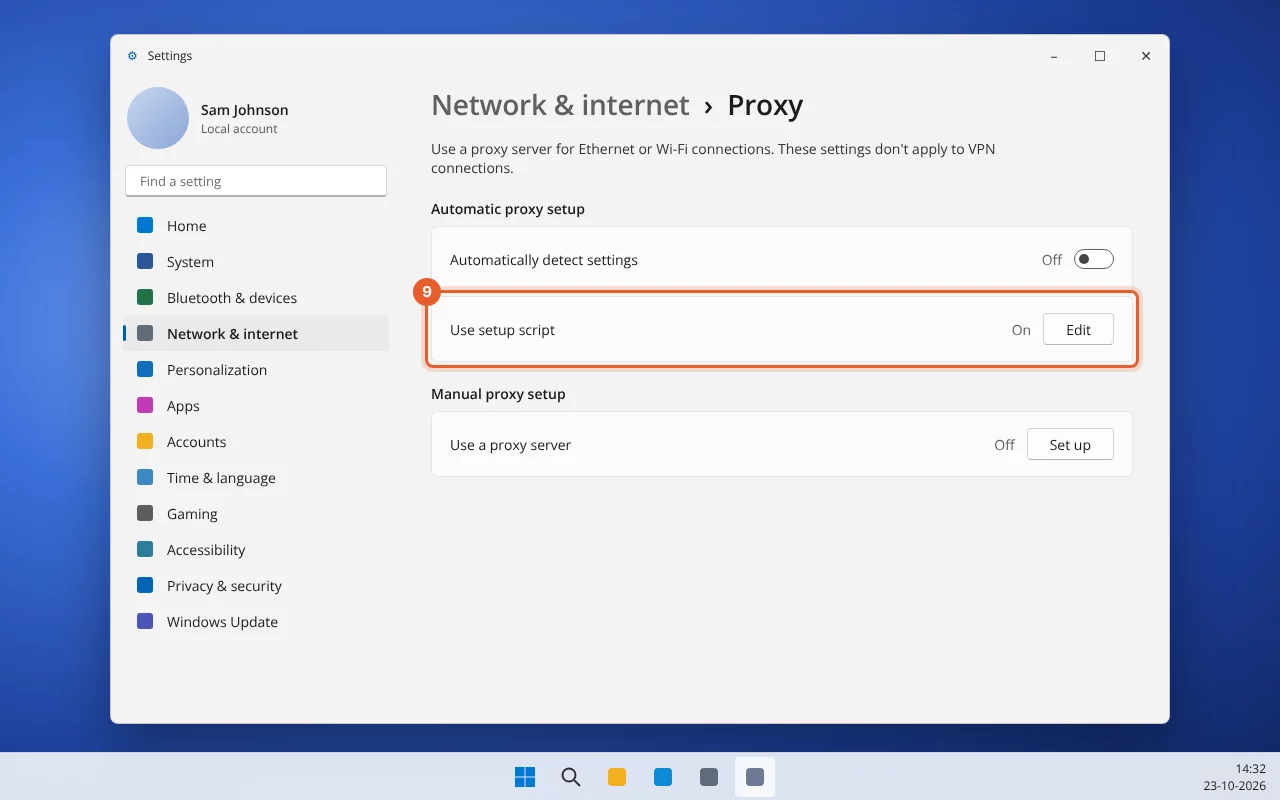
Chrome and Edge use Windows's proxy setting. Watch the video, or follow the steps with the screenshots.


Step 2 on a Mac (Safari and Chrome)
Safari and Chrome use macOS's network settings. Choose the connection you're currently online with: the one with the green dot. Below, first wifi, then a network cable or USB network adapter.
Via wifi




Via a network cable, USB network adapter or dock
If you're connected to the network with a cable, the green dot will be next to Ethernet, USB 10/100/1000 LAN, Thunderbolt Ethernet or the name of your dock. The steps are the same, except that in step 4 you choose that connection. The Details… button will then be right next to that connection.

Step 2 in Firefox
Firefox has its own proxy setting. It works the same on Windows and Mac, for every connection, and also with a VPN.
- Open Firefox and go to Settings (the menu with three lines in the top right).
- Type "proxy" in the search box at the top and click Settings next to Network Settings.
- Choose "Automatic proxy configuration URL".
- Paste your address in the field and click OK.
Step 3: view your website
Open your domain in a private window (Windows: Ctrl+Shift+N, Mac: Cmd+Shift+N) or reload the page with Ctrl+Shift+R (Mac: Cmd+Shift+R). You'll now see the version hosted with WebOké. On the tool's page, use the At WebOké and Current site buttons to switch between the new and old version, and you can see for each domain which IP address the site is currently coming from.
A certificate warning is normal
As long as the domain hasn't been moved to us yet, we can't create an SSL certificate for it. Your browser will therefore warn you for https. Choose to proceed in order to view the site. After the move, your site automatically gets a valid certificate. If the site won't let you click through, try with http:// in front of your domain.
Still seeing the old site?
- Your browser often still shows a stored version. Reload with Ctrl+Shift+R (Mac: Cmd+Shift+R) or use a private window.
- On the tool's page you can see when your computer last fetched the address. If it says it hasn't been fetched yet, check whether you put it in the proxy setting and not in the address bar.
- Mac: is the setting on the connection that currently has the green dot? If you switch from wifi to cable or dock, you need to set it there too.
- Chrome and Edge: go to chrome://net-internals/#proxy (or edge://net-internals/#proxy) and click Re-apply settings, or close the browser completely and restart it.
- Using a VPN? Then your computer often ignores the proxy setting of Windows or macOS. In that case, use Firefox.
Stopping
Done testing? Turn the setting off again in the same place: in Windows the "Use setup script" toggle, on the Mac "Automatic Proxy Configuration" (on each connection where you turned it on), in Firefox choose "Use system proxy settings" again. You can also click Stop testing in the tool. It stops automatically after 14 days: your browser will then go everywhere directly again.
The screenshots and videos are recreations and may differ slightly depending on your version of Windows or macOS.