
Chapter 11 · 11.1
Handy keyboard shortcuts for all editors
With keyboard shortcuts, you work a lot faster than with the mouse. You probably already know many of them from Word or Excel: in Euro-Office, they work in almost exactly the same way. This article lists the shortcuts that work in all four editors: the word processor, the spreadsheet editor, the presentation editor and the PDF editor.
On Mac, you usually use Cmd where Windows uses Ctrl, and Option where Windows uses Alt. For many shortcuts, Control also works on Mac instead of Cmd. If "none" is shown for Mac, that action has no fixed shortcut on Mac.
File, saving and printing
| What | Windows and Linux | Mac |
|---|---|---|
| Save | Ctrl + S | Cmd + S |
| Ctrl + P | Cmd + P | |
| Download as (choose a different format) | Ctrl + Shift + S | Cmd + Shift + S |
| Open the File menu | Alt + F | Control + Option + F |
Undo and the clipboard
| What | Windows and Linux | Mac |
|---|---|---|
| Undo | Ctrl + Z | Cmd + Z |
| Redo | Ctrl + Y | Cmd + Y |
| Cut | Ctrl + X or Shift + Delete | Cmd + X |
| Copy | Ctrl + C or Ctrl + Insert | Cmd + C |
| Paste | Ctrl + V or Shift + Insert | Cmd + V |
| Select all | Ctrl + A | Cmd + A |
Search, comments and chat
| What | Windows and Linux | Mac |
|---|---|---|
| Search | Ctrl + F | Cmd + F |
| Find and replace | Ctrl + H | Control + H |
| Open the Comments panel | Ctrl + Shift + H | Cmd + Shift + H |
| Add a comment | Alt + H | Cmd + Option + A |
| Open chat | Alt + Q | Control + Option + Q |
Formatting text
| What | Windows and Linux | Mac |
|---|---|---|
| Bold | Ctrl + B | Cmd + B |
| Italic | Ctrl + I | Cmd + I |
| Underline | Ctrl + U | Cmd + U |
| Subscript (small letters below the line) | Ctrl + . | Cmd + . |
| Superscript (small letters above the line) | Ctrl + , | Cmd + , |
| Insert a hyperlink | Ctrl + K | Cmd + K |
Zooming and menus
| What | Windows and Linux | Mac |
|---|---|---|
| Zoom in | Ctrl + + (numeric) or Ctrl + = | Cmd + = |
| Zoom out | Ctrl + - | Cmd + - |
| Back to 100% | Ctrl + 0 | Cmd + 0 |
| Open the context menu (like with the right mouse button) | Shift + F10 | Shift + F10 |
| Turn screen reader support on or off | Ctrl + Alt + Z | Cmd + Option + Z |
Tip: zoom using Euro-Office's buttons or shortcuts, not your browser's zoom. If your browser isn't set to 100%, Euro-Office may ask you to reset your browser's zoom with Ctrl + 0.
View all shortcuts yourself
Euro-Office has a window showing all the shortcuts for the editor you're working in. Here's how to open it:
- Click the File tab and choose Advanced Settings.
- Scroll down. Under Keyboard Shortcuts, click Customize (1).

You'll now see a list of all actions and their keys. Type part of a name in the search field (1) to find something quickly. The names in the list are technical names, partly in English, such as ApplyHeading1 for the Heading 1 style. Click a row: under Description you'll see what the shortcut does.
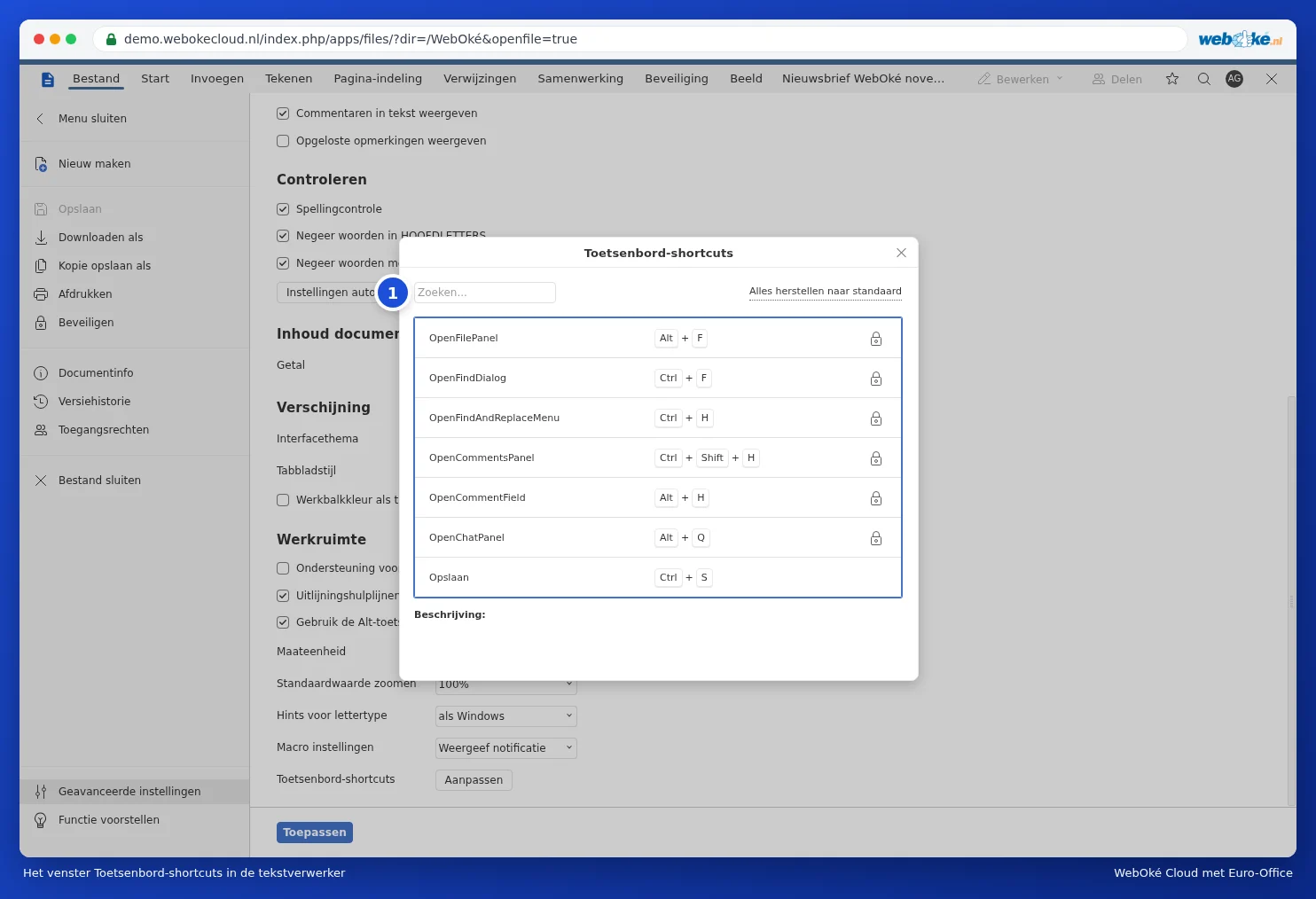

A shortcut with a padlock after it is fixed. You can change the others yourself in the Edit shortcut window. Lost track of something? Use Restore All to Defaults to set all shortcuts back to how they were. Please note: changed shortcuts only apply in the editor where you changed them. The tables in this guide assume the default keys.
In the spreadsheet editor, the row in the advanced settings is called Keyboard Shortcuts. The window works the same way.

Please note: your browser also uses some keys. If a shortcut doesn't work, your browser or operating system might intercept it first. In that case, use the button in the toolbar instead.