
Chapter 5 · 5.2
Formulas and functions: SUM, AVERAGE, IF and VLOOKUP
Watch it in a short video
Formulas let Euro-Office do the calculating for you. A formula always starts with an equals sign (=). Change a number, and the formula recalculates straight away.
Calculating with cell addresses
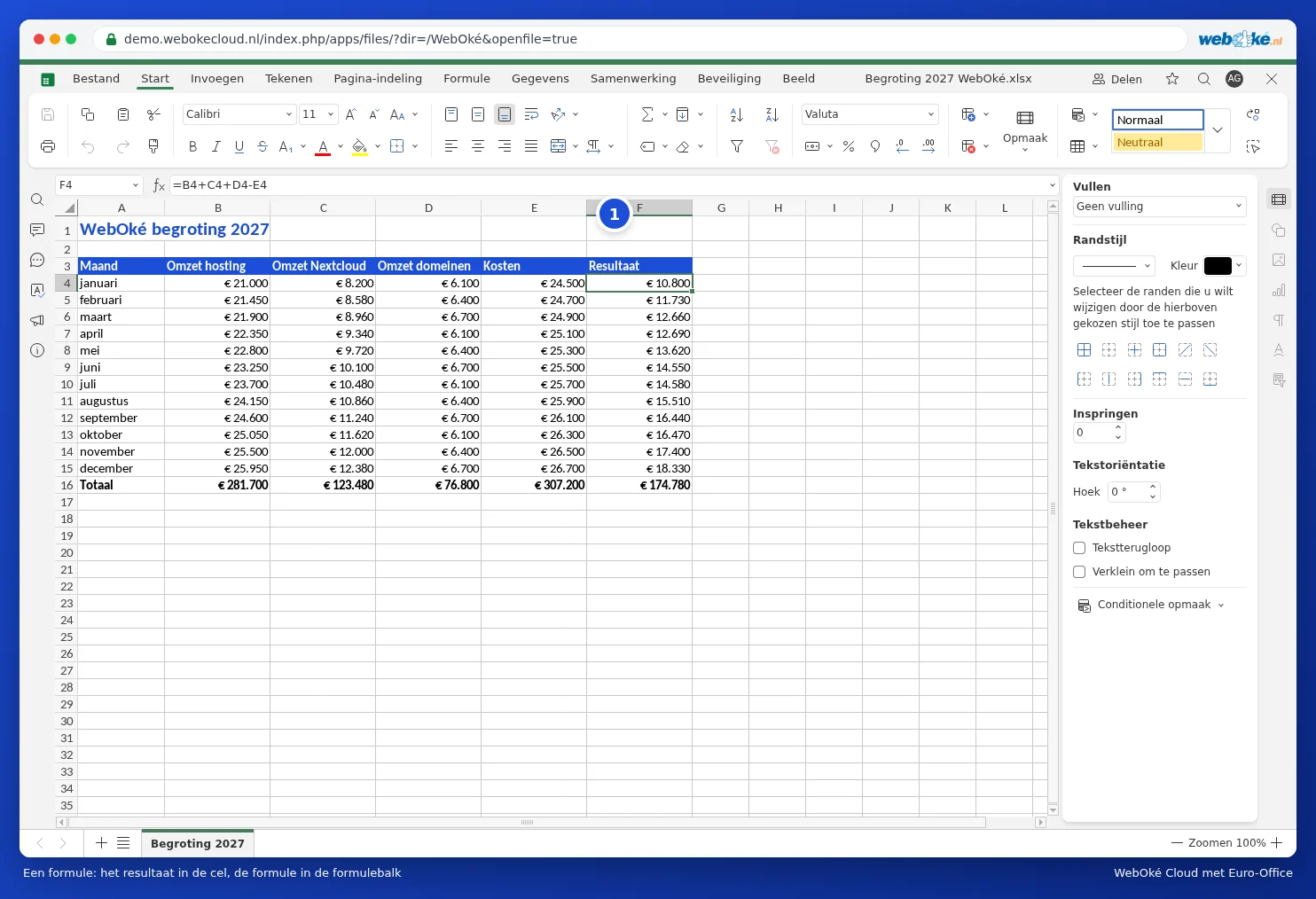
In the budget, cell F4 contains the formula =B4+C4+D4-E4: revenue minus costs. Use + to add, - to subtract, * to multiply and / to divide. Use brackets to control the order, for example =(B4+C4)*1.21.
The most important functions
Euro-Office uses the English names of the functions, just like the English version of Excel. Separate the parts of a function with a comma (,).
| Function | What does it do? | Example |
|---|---|---|
| SUM | Adds up numbers | =SUM(B4:B15) |
| AVERAGE | The average | =AVERAGE(B4:B15) |
| MIN and MAX | The smallest and largest number | =MAX(F4:F15) |
| COUNT | Counts cells containing a number | =COUNT(D2:D17) |
| COUNTIF | Counts cells that meet a condition | =COUNTIF(C2:C17,"Nextcloud Max") |
| SUMIF | Adds up values that meet a condition | =SUMIF(C2:C17,"Nextcloud Max",F2:F17) |
| IF | Chooses based on a condition | =IF(F4>0,"profit","loss") |
| VLOOKUP | Looks up a value in a table | =VLOOKUP(H2,A2:F17,3,FALSE) |
Quick summation with the sum symbol
Place the cursor below a column of numbers and click the sum symbol (Summation) on the Home tab. Euro-Office suggests a range for you; press Enter and the total appears. Use the arrow to choose AVERAGE, MIN or MAX instead.
Looking something up with VLOOKUP
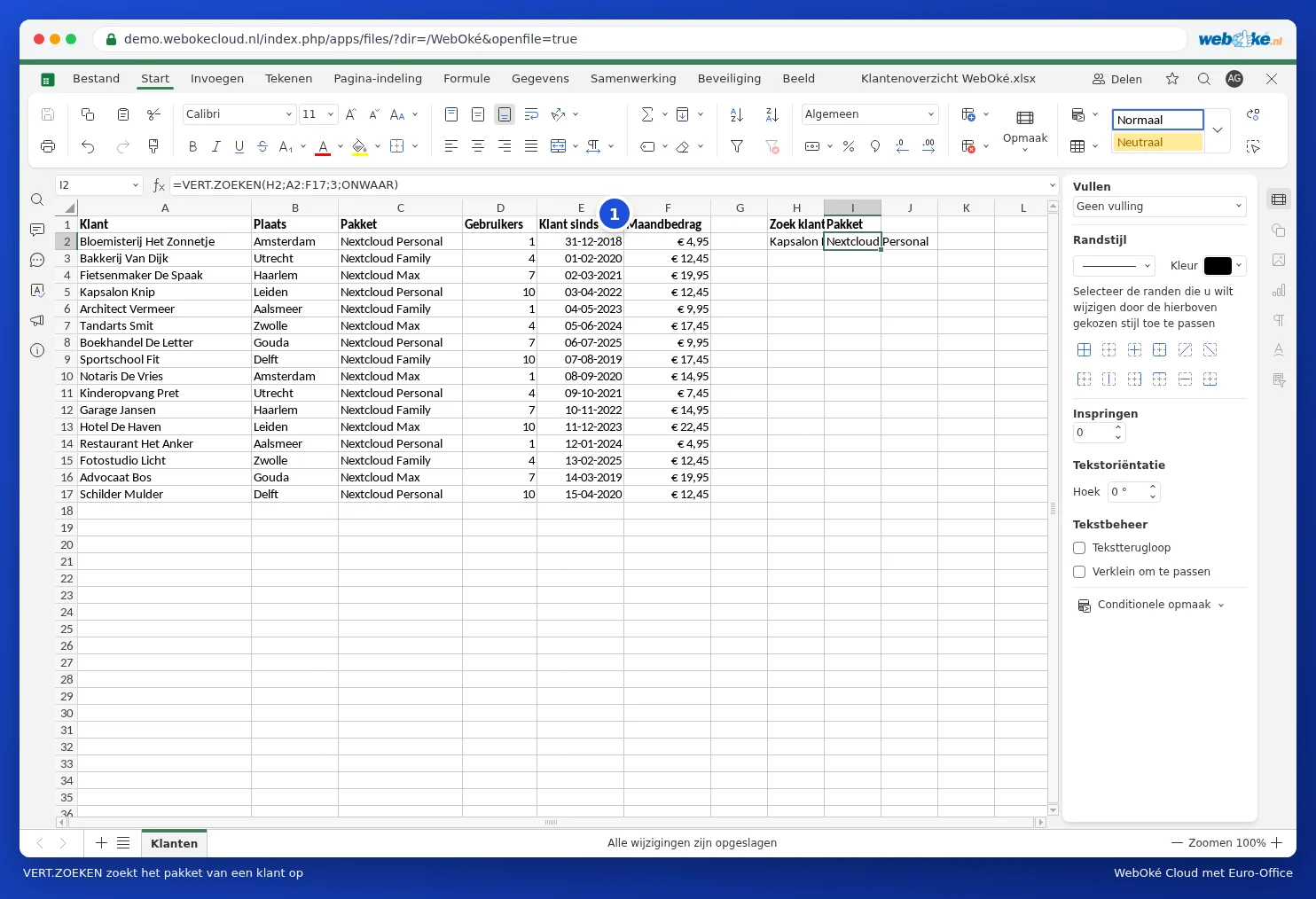
In the customer overview, we want to look up the package for a given customer name. In H2 we type the name, and in I2 the formula =VLOOKUP(H2,A2:F17,3,FALSE). This means: look up the value from H2 in the first column of A2:F17 and return the value from the third column (the package). FALSE ensures that only an exact match counts.
All functions on the Formula tab
The Formula tab (1) lists all functions by category: financial, logical, text, date and time, lookup and reference, maths and more. Click a function and Euro-Office helps you fill in the parts you need.

Fixed cell references with the dollar sign
If you drag a formula down, the cell addresses shift along with it: B4 becomes B5, B6 and so on. Want an address to stay fixed, for example a cell with the VAT rate? Add dollar signs: $H$1. While typing an address, press F4 to quickly add the dollar signs.
Tip: if you see #NAME? in a cell, Euro-Office doesn't recognise the function name. Check the spelling. #N/A with VLOOKUP means the lookup value wasn't found. Use IFERROR to display a friendly message instead: =IFERROR(VLOOKUP(...),"not found"). You can read more about this in VERT.ZOEKEN geeft #N/A: zo los je het op. Euro-Office displays error values using the English codes, just like the English version of Excel.