
Chapter 5 · 5.4
Managing DNS: adding, editing and deleting records
Watch it in a short video
The DNS determines where your website, your email and other services for your domain point to. As long as your domain uses the name servers of WebOké, you manage the DNS records yourself in My WebOké.
Go to My Domains and click the DNS tab, or click DNS behind a domain in the overview.
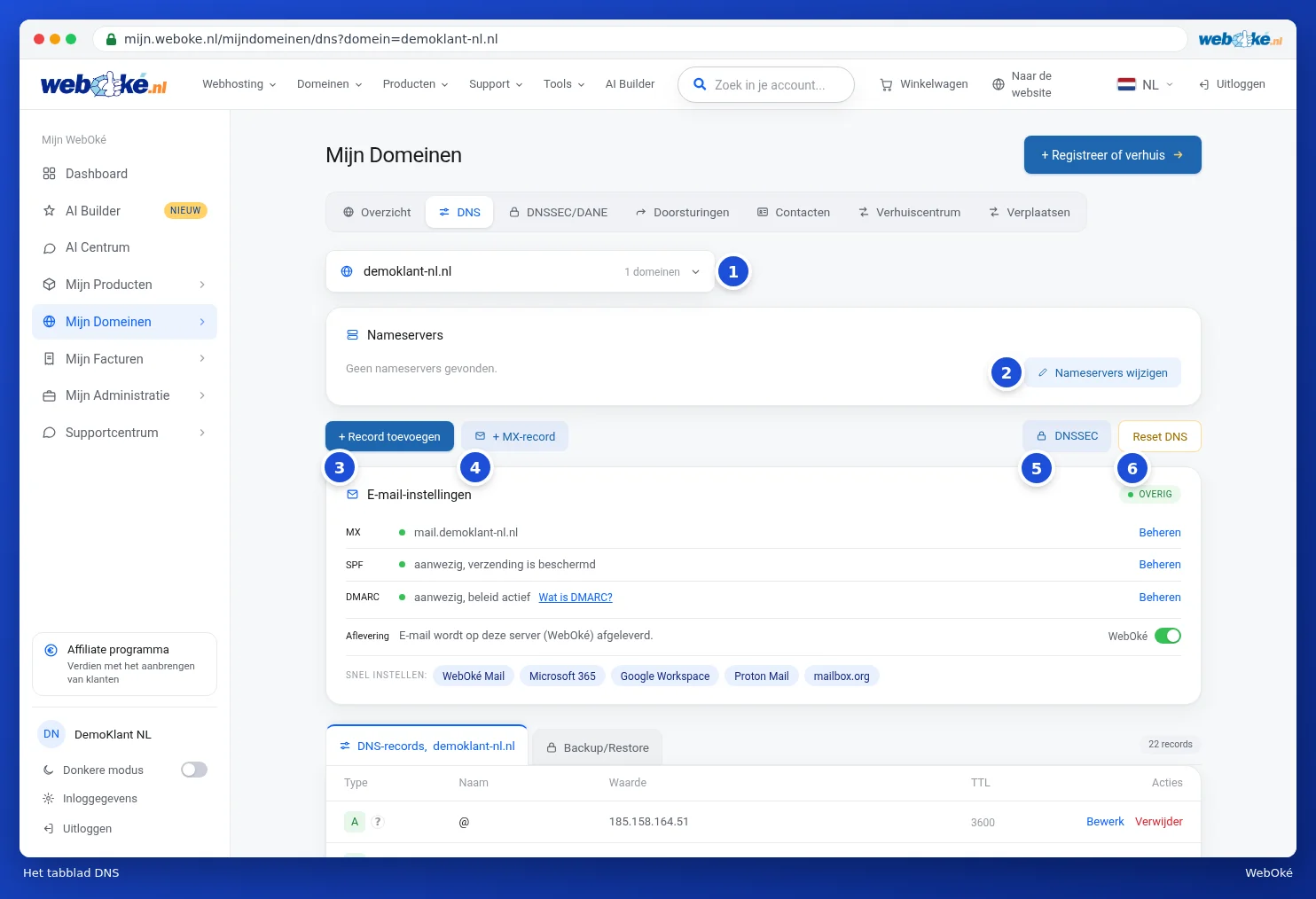
What do you see on the DNS tab?
- The domain selection (1): choose the domain whose DNS you want to see. For many domains, you can search within this list.
- Name servers: the name servers of the domain, with the Edit nameservers button (2). See Edit nameservers.
- + Add record (3) and + MX record (4): create a new record.
- DNSSEC (5): go to the DNSSEC settings, see DNSSEC and DANE.
- Reset DNS (6): reset all records to the WebOké default, see Restoring DNS and creating a DNS backup.
- Email settings: the card with your MX, SPF and DMARC, see Set up email quickly in the DNS.
- At the bottom, the list with all records, and the Backup/Restore tab.
In the list, you see the Type, Name, Value and TTL for each record, with Edit and Delete on the right. NS records have a lock icon and no Delete button: these belong to your name servers.
Adding a record
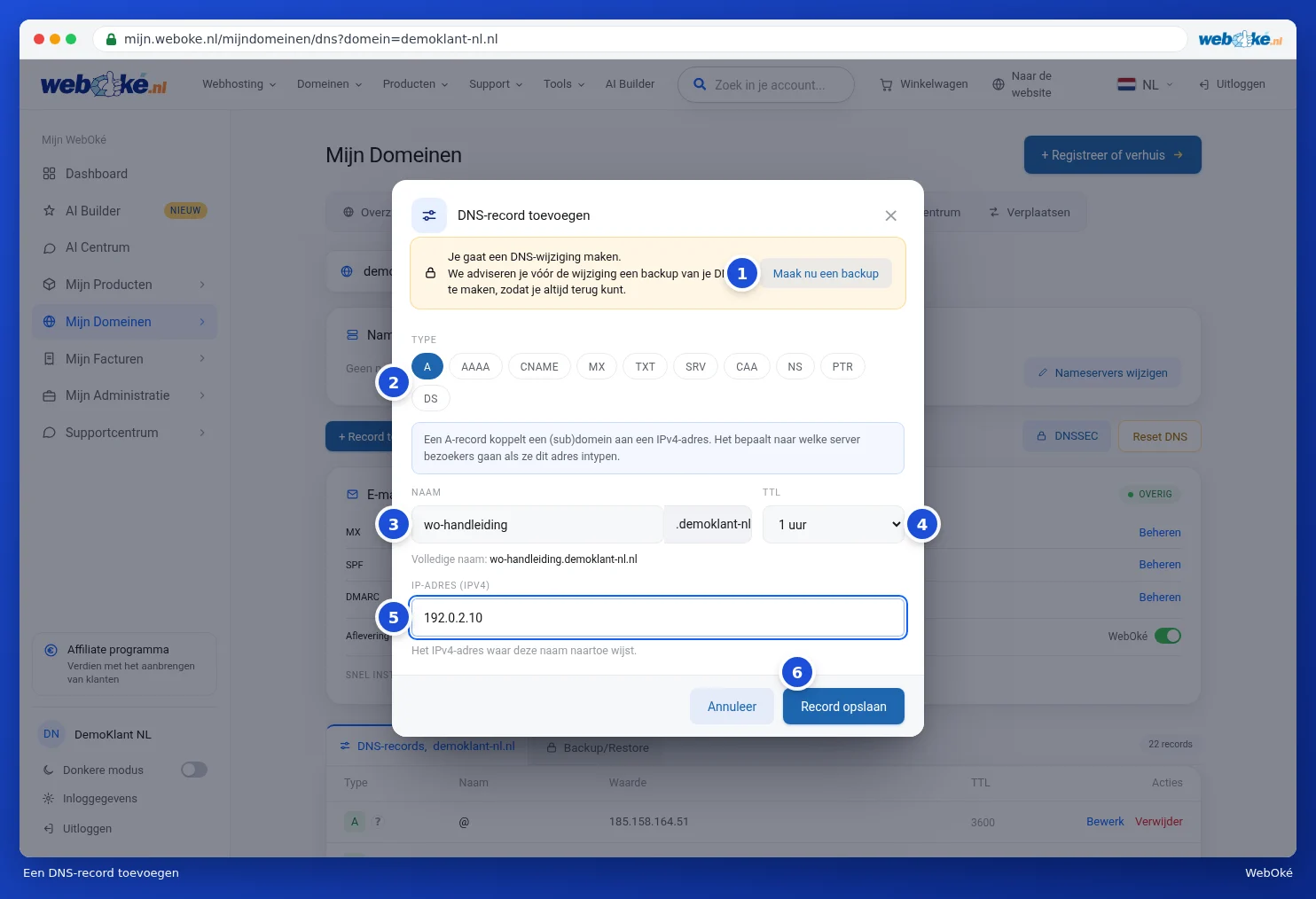
- Click + Add record. The Add DNS record window opens.
- At the top, you will see advice to create a backup of your DNS first. Click Create a backup now (1) if you want to be sure you can go back.
- Choose the Type (2), for example A. Below it, a sentence explains what this type of record does.
- Fill in the Name (3). For the domain itself, type @. For a subdomain, type only the first part, for example www or shop. Your domain name is added automatically. Below the field, you see the Full name.
- Choose the TTL (4): how long other servers may remember the answer. Leave it at 1 hour if you are not sure.
- Fill in the value (5). For an A record, this is the IP address of the server.
- Click Save record (6).
You see the message Record added. Active worldwide within an hour. and the record appears in the list immediately.

Tip: are you pointing to a full hostname, such as with a CNAME or MX record? Then add a dot at the end, for example mail.example.com.. If you forget the dot, the window will warn you and show what the result would be otherwise.
Explanation of a record
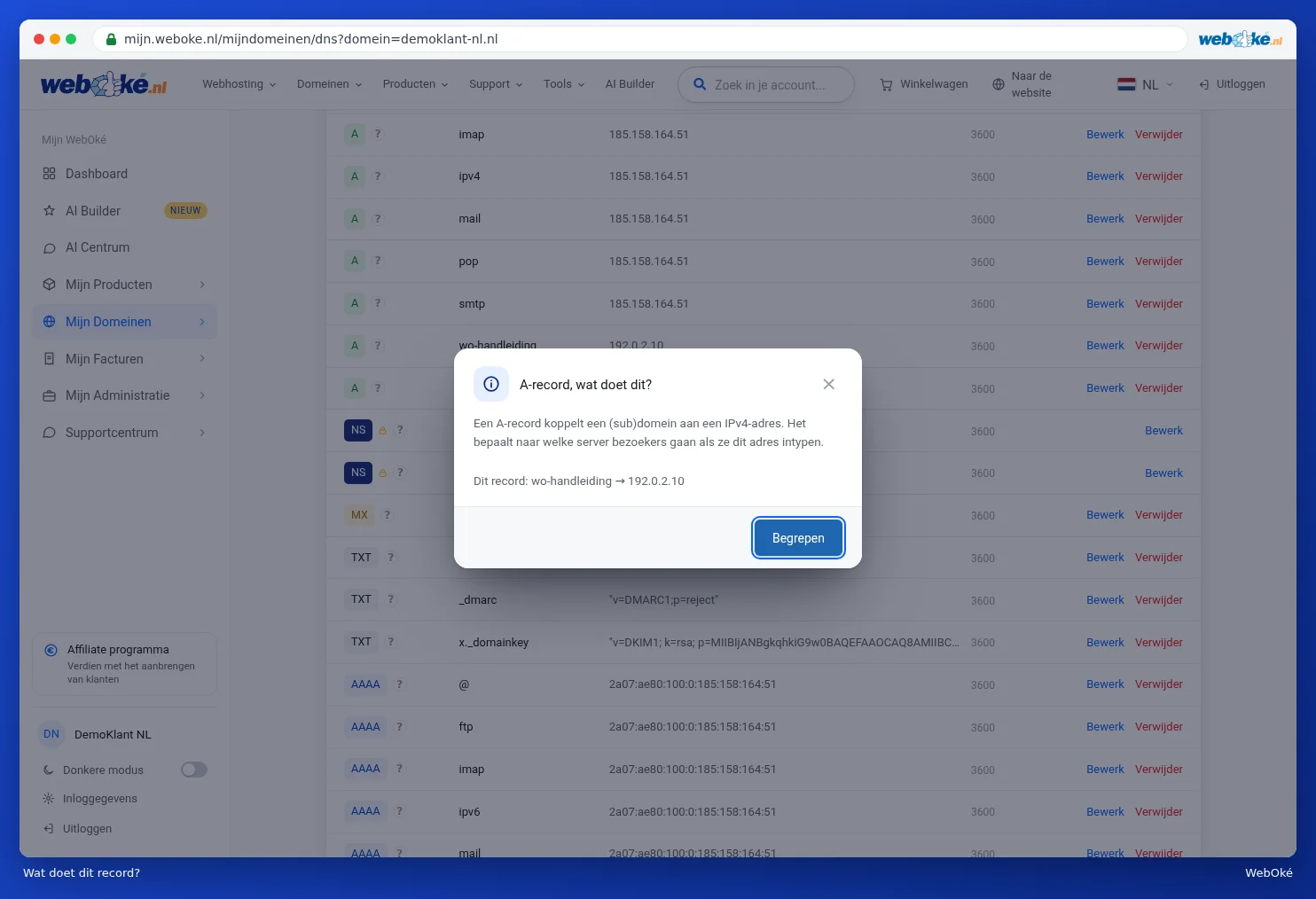
Behind the type of each record (1), there is a question mark (2). Click it and you get a plain-language explanation of what the record does, along with the name and value of that record.
Editing a record
- Click Edit (3) behind the record. The Edit DNS record window opens with the current details.
- Change whatever you want to update.
- Click Save change.

Deleting a record
- Click Delete (4) behind the record.
- You are asked Delete this record?. Click OK to delete it or Cancel to keep the record.

The record types in brief
| Type | What does it do? |
|---|---|
| A | Links a (sub)domain to an IPv4 address: which server visitors go to. |
| AAAA | The same as an A record, but with an IPv6 address. |
| CNAME | An alias: this name points to another domain name. |
| MX | Which mail server receives email for your domain. |
| TXT | Text for other services, such as domain verification, SPF, DKIM and DMARC. |
| SRV | Points a service, such as internet calling or chat, to the right server and port. |
| CAA | Which parties may issue an SSL certificate for your domain. |
| NS | Which name servers manage your domain. Editing this incorrectly makes your domain unreachable. |
| PTR | Reverse DNS: links an IP address back to a name. |
| DS | Links DNSSEC to the registry. |
For MX, SPF, DMARC, CAA and SRV, the window offers extra help. You can read about this in DNS helpers: MX, SPF, DMARC, CAA and SRV.
Changes are usually active worldwide within an hour. In rare cases it can take up to 24 hours.