
Chapter 10 · 10.4
Setting up or stopping direct debit
With direct debit, you never have to think about your invoices again. You give us a SEPA mandate once, and after that we automatically collect outstanding and new invoices from your account. You arrange it on the Direct debit tab under My Invoices.
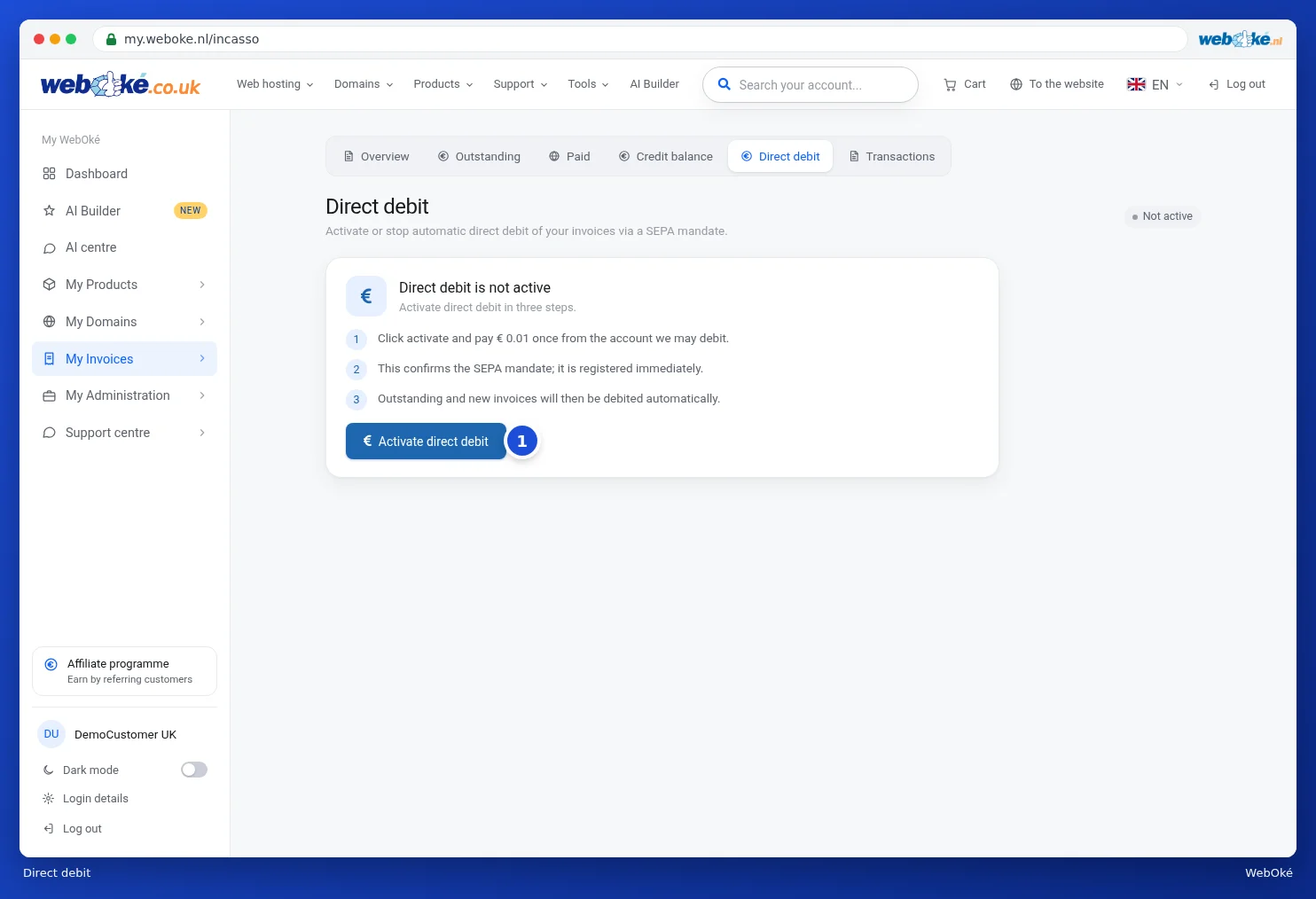
Activating direct debit
- Go to My Invoices and choose the Direct debit tab. You can also click Set up in the bar above your invoices.
- Click Activate direct debit (1).
- You'll be taken to our payment partner Mollie. Pay a one-off 1 cent there from the account we're allowed to collect from.
- This payment confirms the mandate. You'll return to My WebOké, and the page will show that direct debit is active.

Once direct debit is active, the page shows the mandate number, account number and account holder's name. Your default payment method then automatically becomes Direct debit, including for any invoices that are still outstanding.
Tip: would you rather pay an invoice yourself and choose iDeal with recurring direct debit on the payment screen? Then you pay that invoice and set up the mandate for future invoices in the same step.
What happens when a payment is collected?
As soon as we issue a direct debit instruction for an invoice, the invoice shows as In progress. The invoice page will then show that the direct debit has started. You don't need to do anything: the amount is collected automatically, after which the invoice is marked as paid.
Please note: it's best not to reverse a direct debit payment. If something's not right, please contact us and we'll sort it out together. If a payment is reversed (chargeback), the direct debit agreement is automatically stopped.
Stopping direct debit
- Go to the Direct debit tab.
- Click Stop direct debit.
The mandate is then withdrawn. Your default payment method reverts to Bank transfer. You'll need to pay new invoices yourself after that. You can always activate direct debit again later.
Can't use the activation button, and do you see a message saying direct debit isn't possible for your account? Please contact us.