
Chapter 11 · 11.1
Opening File Manager: the directories in your package
Watch it in a short video
With File Manager, you work with the files of your hosting package in your browser. You don't need a separate program for it. You can use it to upload files, create directories, extract zip files, edit a file such as .htaccess and adjust permissions. For large numbers of files, FTP is more convenient (see Creating and managing FTP accounts and Verbinden met FileZilla (FTP, FTPS en SFTP)).
Opening File Manager
- Log in to DirectAdmin, most easily via My WebOké (see Signing in via My WebOké).
- In the menu, under System Info & Files, click File Manager. You can also press Ctrl+K and type "File Manager" (see Quick search with Ctrl+K and Ctrl+J).
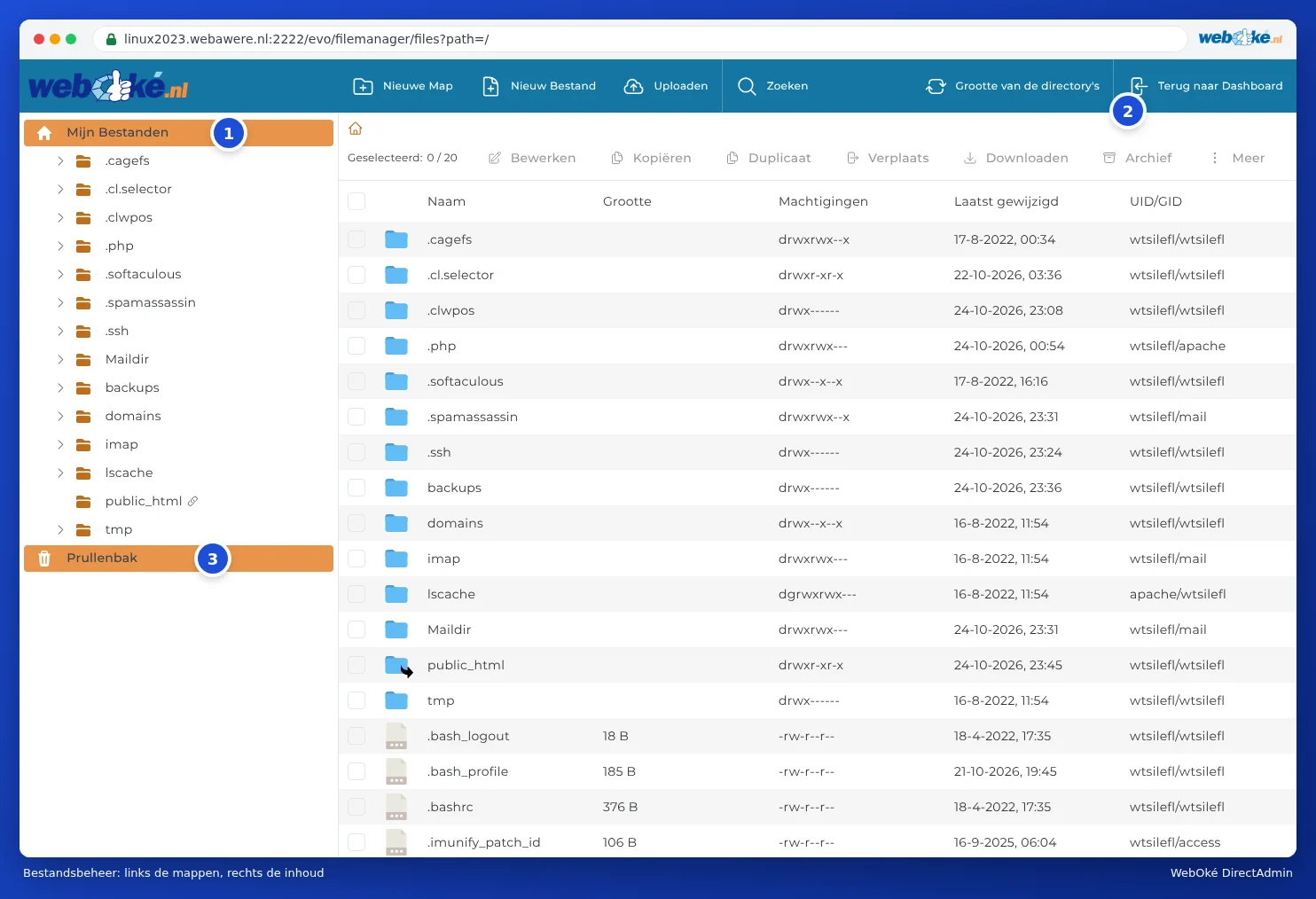
File Manager opens full screen. On the left is the directory tree (1), and on the right the contents of the directory you're in. At the top are the buttons New Folder, New File, Upload, Search and Directory sizes. With Back to Dashboard (2), you go back to DirectAdmin.
Which directories do you see?
You start in the main directory of your package (My Files). The most important directories:
| Directory | What's in it? | Can you work in it? |
|---|---|---|
| domains | A separate directory for each domain in your package, containing the website. | Yes, this is usually where you work. |
| public_html (with a switch icon) | A shortcut to domains/yourmaindomain.nl/public_html, the website of your main domain. | Yes. It's the same directory, just a shorter route. |
| imap and Maildir | Your email. | No. Don't delete anything here: you'll lose your email. Manage your email in your email program or webmail. |
| tmp, lscache and directories starting with a dot, such as .cagefs, .php and .cl.selector | Temporary files, the web server cache and server settings (for example, your PHP version). | No, leave these alone. |
Your domain's directory
Open domains and then the directory of your domain, for example exampledomain5.nl. It contains:

- public_html (1): the directory of your website. Everything in it is visible on the internet. Your homepage is called index.html or index.php and is placed directly in this directory, not in a subdirectory.
- private_html (2): the directory for visitors coming via https. At WebOké, this is a link (symlink) to public_html, so you only need to put your website in one place. See also Domain settings: SSL, PHP, www and private_html.
- logs: the log files of your website. These are easier to view via Site summary & logs (see Site summary & logs: the error log and the access log).
- public_ftp: a directory for a public FTP folder. You'll hardly ever use this.
- awstats and .htpasswd: for statistics and for password-protected directories (see Password Protected Directories). Leave these as they are.
Do you have a subdomain, such as shop.yourdomain.nl? Then its website is placed in its own directory by default, domains/shop.yourdomain.nl/public_html. For older subdomains (or the Legacy option), it's a subdirectory of public_html, such as domains/yourdomain.nl/public_html/shop. In Subdomain Management, you can see in the Docroot column which directory it is (see Creating and deleting subdomains).
Working with files
- Open: double-click a directory. Use the house icon or the directory names at the top (the breadcrumb path) to go back to a higher directory.
- Select: tick the box next to a file. You can tick several at once, or select all at the top.
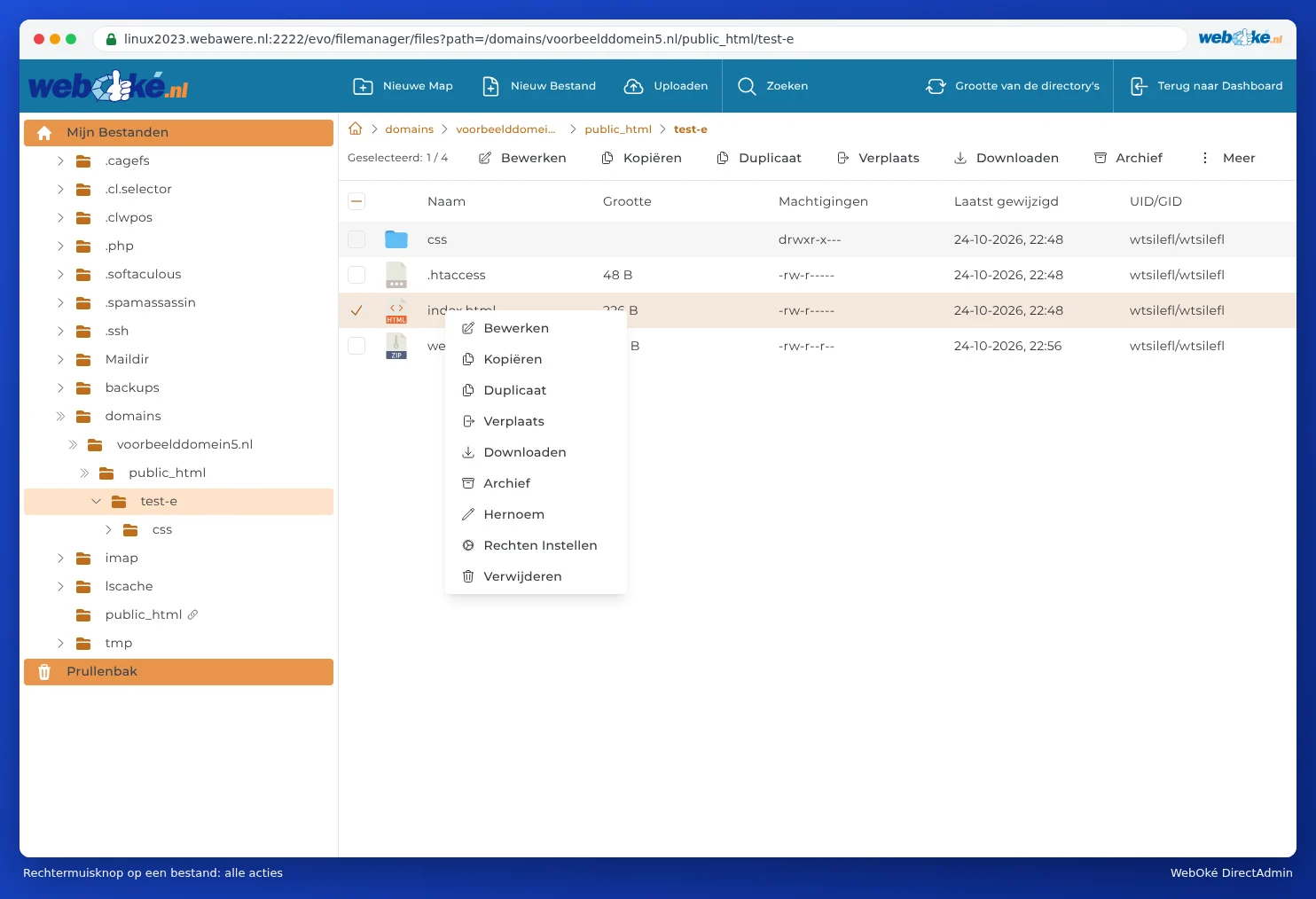
- Actions: above the list are the buttons Modify, Copy, Duplicate, Move, Download, Archive, and under More you'll also find Rename, Set Permissions and Delete. You get the same options by right-clicking a file.
The trash
When you delete something, it may first go to the Trash (3), at the bottom left of the directory tree. This lets you undo a mistake. But please note: anything in the trash still counts towards your storage space. So empty the trash once you're sure. You can set whether deleted files go to the trash by default in Skin Options (see Skin Options: light or dark, display and more).
How much space does a directory take up?
Click Directory sizes at the top. File Manager then calculates the size of each directory. This way, you can quickly find out where your space is going. Read more about this in Storage full: where's the space going?.
Please note: Anything you delete or overwrite in File Manager is immediately gone from your website. Not sure? Make a copy first with Duplicate or Download. If something does go wrong, you can restore a file or directory with WebOké Backups (see Can I also do this in My WebOké? WebOké Backups).
Frequently asked questions
I've uploaded my files, but I still see the old page or an error message.
Check whether your files are in public_html of the correct domain, and whether your homepage is called index.html or index.php (in lower case). If there's still an old index.html next to your new index.php, index.html takes priority: delete or rename the old one. If you get a 403 error, check the permissions (see File and directory permissions (chmod)).
I want to remove my website but keep my email.
Just delete the contents of public_html. Your email is stored elsewhere (in imap and Maildir) and will keep working as normal. If you want visitors to see a message, place a simple index.html with, for example, "This website is no longer in use".
I can't delete a directory: I'm not the owner.
The UID/GID column shows who owns a file. If this shows something other than your own DA username, for example apache, the web server created the file and you may not always be able to delete it. In that case, open a ticket; we'll fix the ownership for you.