
Chapter 15 · 15.6
Setting up a Python app
With Setup Python App you set up a Python application, for example with Django, Flask or FastAPI. Each app gets its own Python version and its own virtual environment (virtualenv), so you install packages per app.
Creating an app
- In DirectAdmin, under Extra Features, click Setup Python App.
- Click CREATE APPLICATION.
- Under Python version (1), choose the version. Choose a current 3 version that your app supports. The default is 2.7, which is outdated.
- Under Application root (2), enter the folder for your app, for example apps/myapp.
- Under Application URL (3), choose the domain and, if needed, a path.
- Under Application startup file (4), enter the startup file, usually passenger_wsgi.py.
- Under Application Entry point (5), enter the name of the WSGI object, usually application.
- Click CREATE.
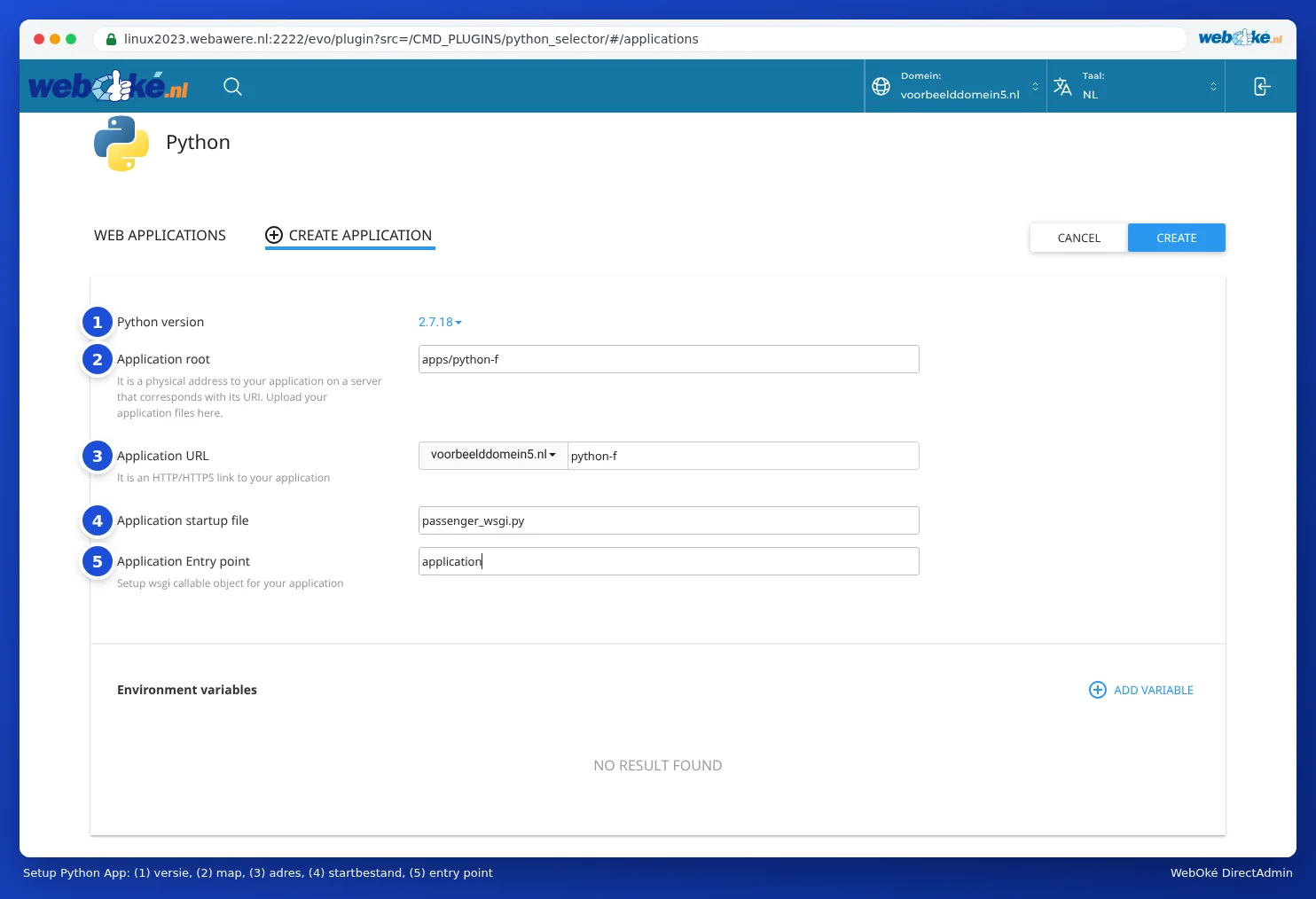
DirectAdmin creates the folder, the virtual environment and an initial startup file. Open your app's address: you'll see a test page saying it's working.
Your own code and packages
- Upload your code to your app's folder.
- Put your packages in a file called requirements.txt in that folder.
- Edit the app in Setup Python App, enter requirements.txt under the configuration files and click Run Pip Install.
- Click Restart.
For Flask, you could put something like from app import app as application in passenger_wsgi.py. For Django, refer to your project's wsgi.py.
Working in the virtual environment
At the top of your app's screen, you'll find a command starting with source. Copy it and paste it into the Terminal or your SSH session (see Terminal in your browser). You'll then be working in your app's virtual environment, with the correct Python version, and you can use commands such as pip install or python manage.py migrate.
Frequently asked questions
I get "ModuleNotFoundError" or "No module named ...".
The package was installed outside your app's virtual environment. First activate the environment with the command from the screen and reinstall the package, or use Run Pip Install.
I've changed my code, but I still see the old version.
Click Restart for your app.
My app shows a 503 or 500 error.
Check your domain's error log (see Site summary & logs: the error log and the access log) and look in your app's folder for a log file with the error message. Usually the startup file or the entry point is incorrect, or a package is missing.