
Chapter 15 · 15.11
Imunify360: scanning your website for malware
Imunify360 protects your website against malware: malicious files that hackers place on a website, for example through a vulnerability in an old plugin. Imunify360 automatically scans the files in your package and checks new files as soon as they're uploaded. In DirectAdmin, you'll find the results under Imunify360 Plugin, in Extra Features.
The Malware Scanner
Click Imunify360 Plugin. You'll arrive at the Malware Scanner with three tabs:
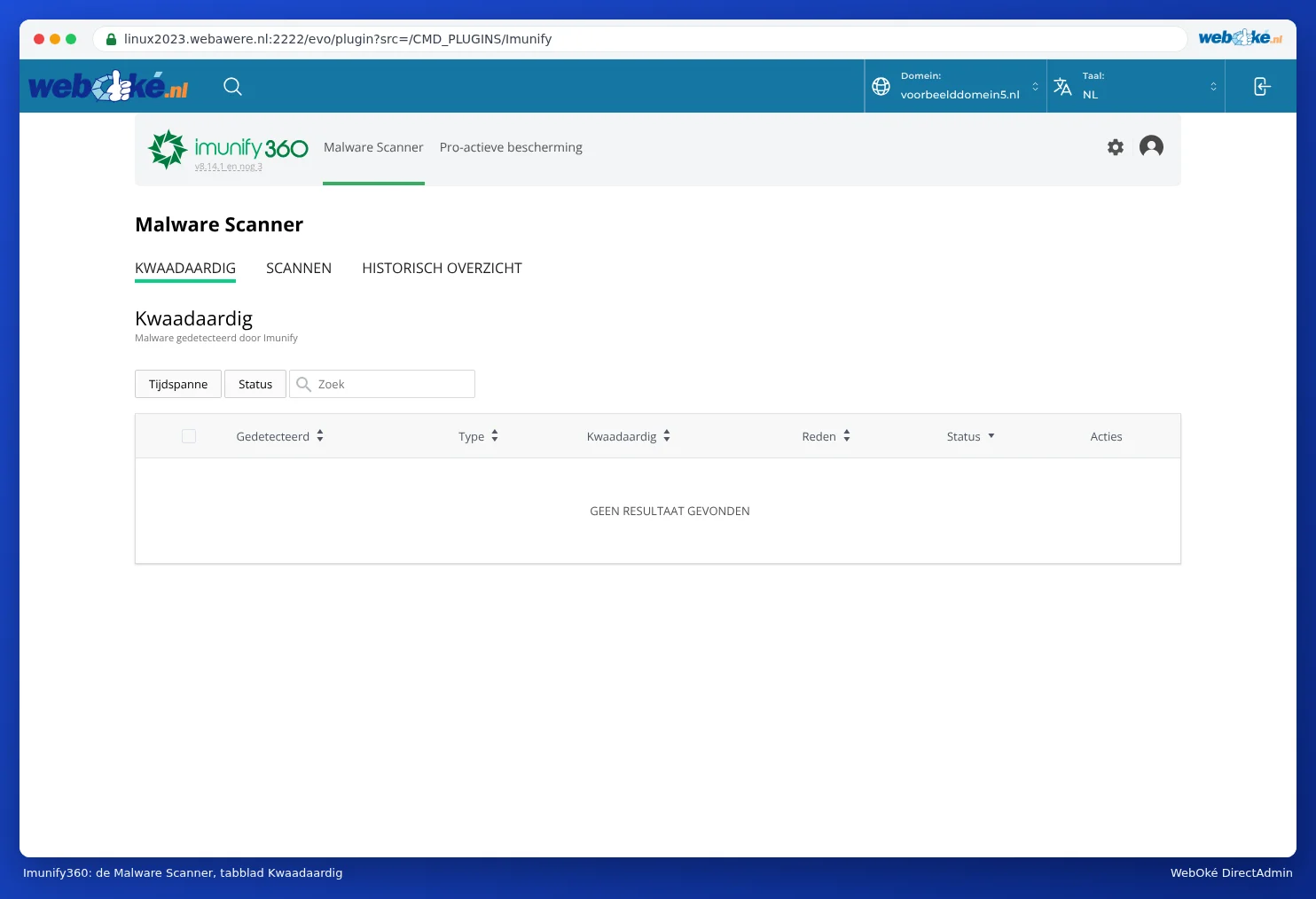
- MALICIOUS: the files in which Imunify360 has found malware, with the type, the reason and what happened to it. If it says NO RESULT FOUND here, nothing was found.
- SCANNING: the scans that have been carried out, with the date, what was scanned (your files, your databases and your cron jobs), how many files and the result.
- HISTORY: what has been found and done in the past.
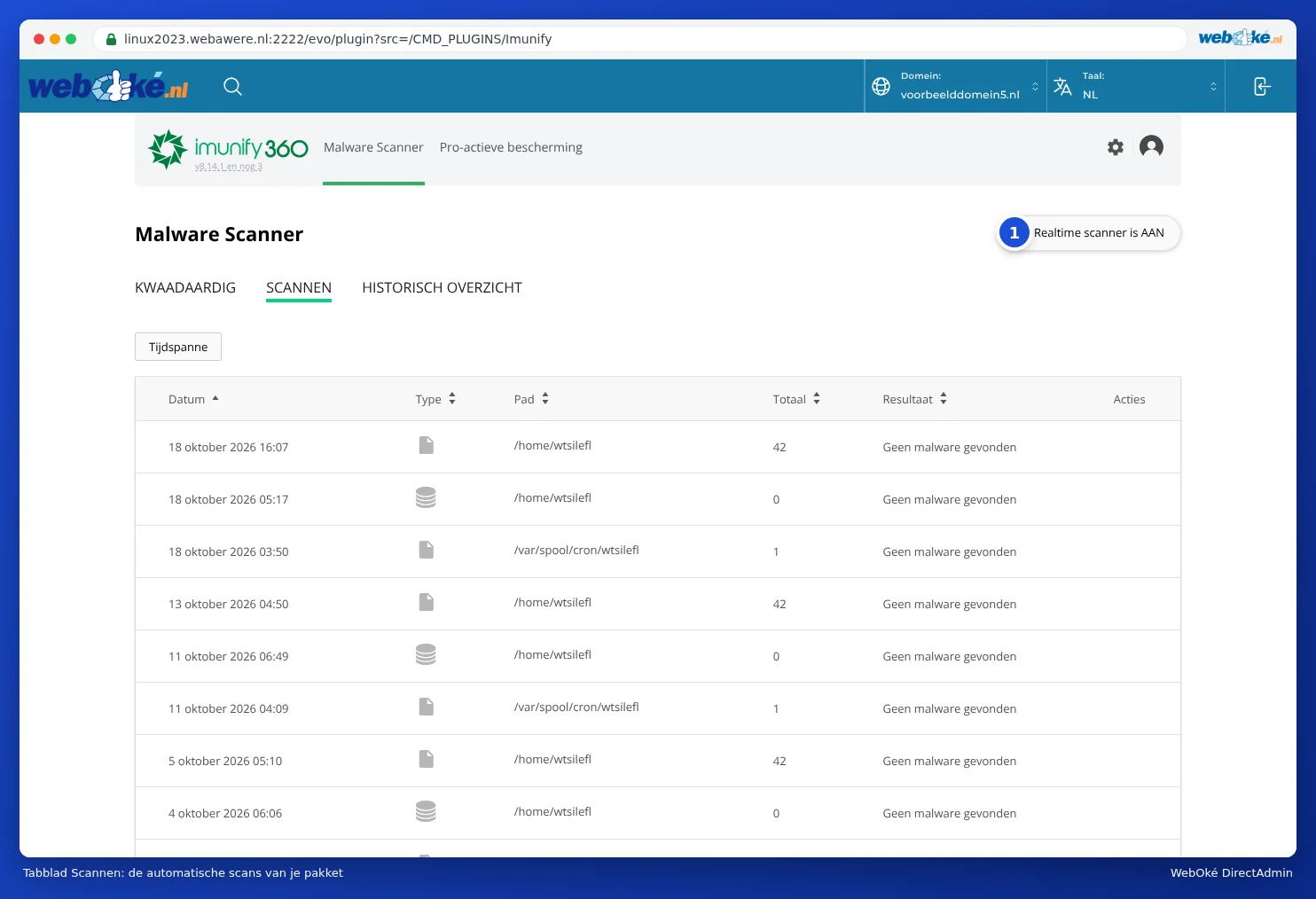
At the top right, it says Realtime scanner is ON (1). This means that every file you upload via FTP, File Manager or your website is checked immediately. In addition, Imunify360 automatically scans your entire package regularly. There's no need to start a scan yourself, and you can't either.
Proactive defence
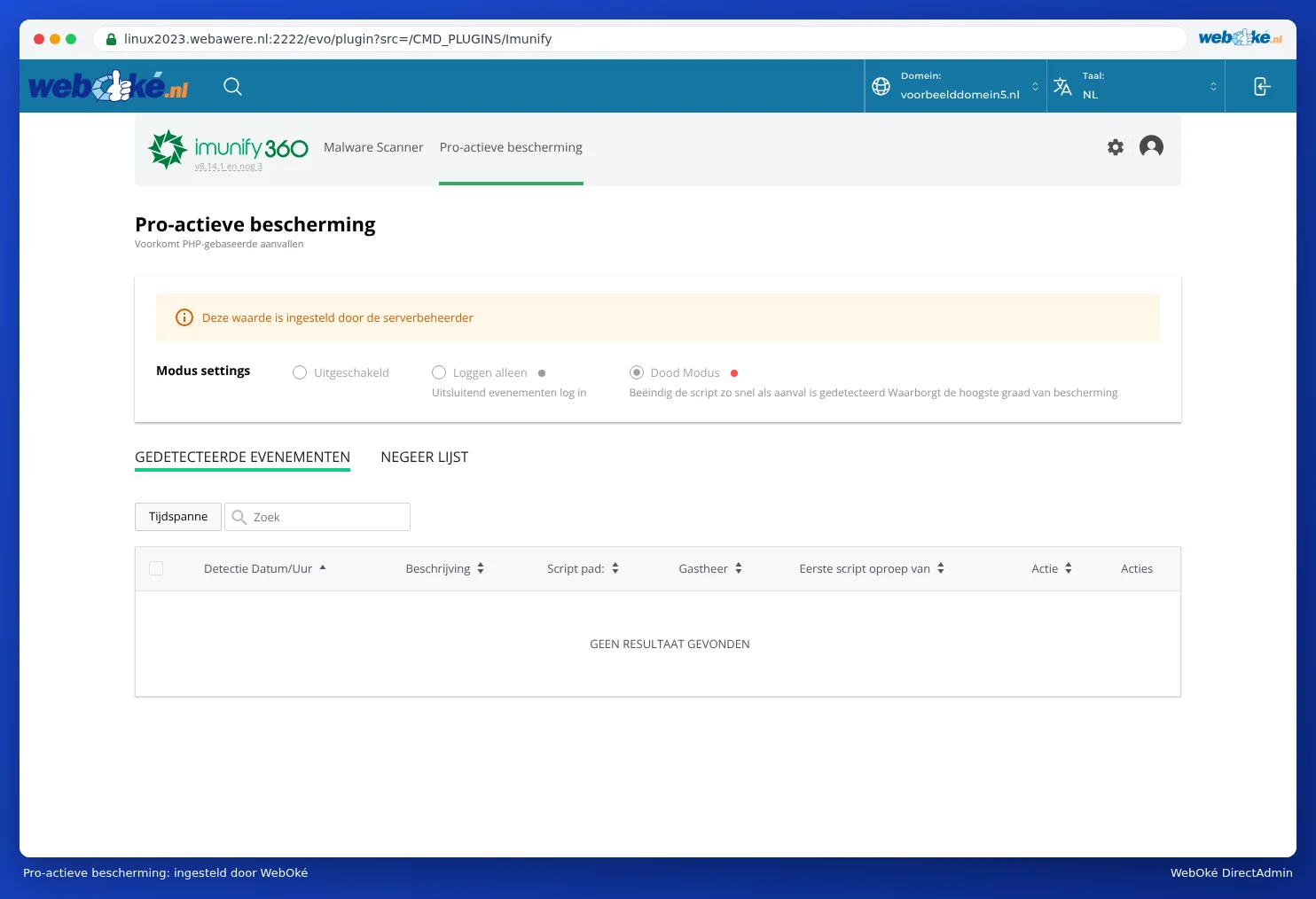
On the Proactive defence tab, Imunify360 keeps an eye on whether a PHP script behaves suspiciously while it's running. We manage this setting for you; it says This value is set by the server administrator. Under DETECTED EVENTS, you'll see anything that has been blocked.
What if malware is found?
- Don't panic and don't just delete files. A file that's found can also be part of your website that's been flagged incorrectly.
- Check the Malicious tab to see which files are involved. The path often tells you which plugin or theme was the vulnerability.
- Update WordPress, your theme and all your plugins, and remove plugins and themes you don't use.
- Change your passwords: for WordPress, FTP, your database and your DA password.
- Follow the step-by-step plan in My website has been hacked: step-by-step plan. Not sure, or does it keep coming back? Open a ticket and we'll take a look with you.
Tip: Getting a 403 error with IM360 WAF in the error log? Then the Imunify360 firewall has blocked a request. Report it via a ticket with the time and the address of the page.
Frequently asked questions
When I click on Imunify360, I get a blank screen.
Wait a few seconds: the plugin sometimes loads slowly. Otherwise, refresh the page, or log in again via My WebOké. If it stays blank, open a ticket.
Does Imunify360 fully protect my website?
It helps a lot, but the best protection is software that's up to date, strong passwords and a backup (see What backups are available at WebOké).