
Chapter 14 · 14.8
AI Assistant in your Nextcloud
With Nextcloud Family and Max, you use AI in your own Nextcloud. You chat with the Assistant and have texts summarised, rewritten or translated. To do this, you link your own account with an AI provider. WebOké does not charge anything for this for now.
| Package | AI Assistant |
|---|---|
| Free and Personal | No. With Personal you see the card The AI Assistant in Nextcloud is available from Nextcloud Family. with the button Change package. |
| Family and Max | Yes |
What do you need?
An API key from one of these providers:
- Mistral, with processing in the EU (marked with EU in the list).
- OpenAI. With this you can also create images and convert speech to text.
- Anthropic Claude (marked as beta in the list).
You pay the provider yourself per use. A subscription such as ChatGPT Plus or Claude Pro does not work here: you really need an API key. The card includes a link Where do I get an API key?
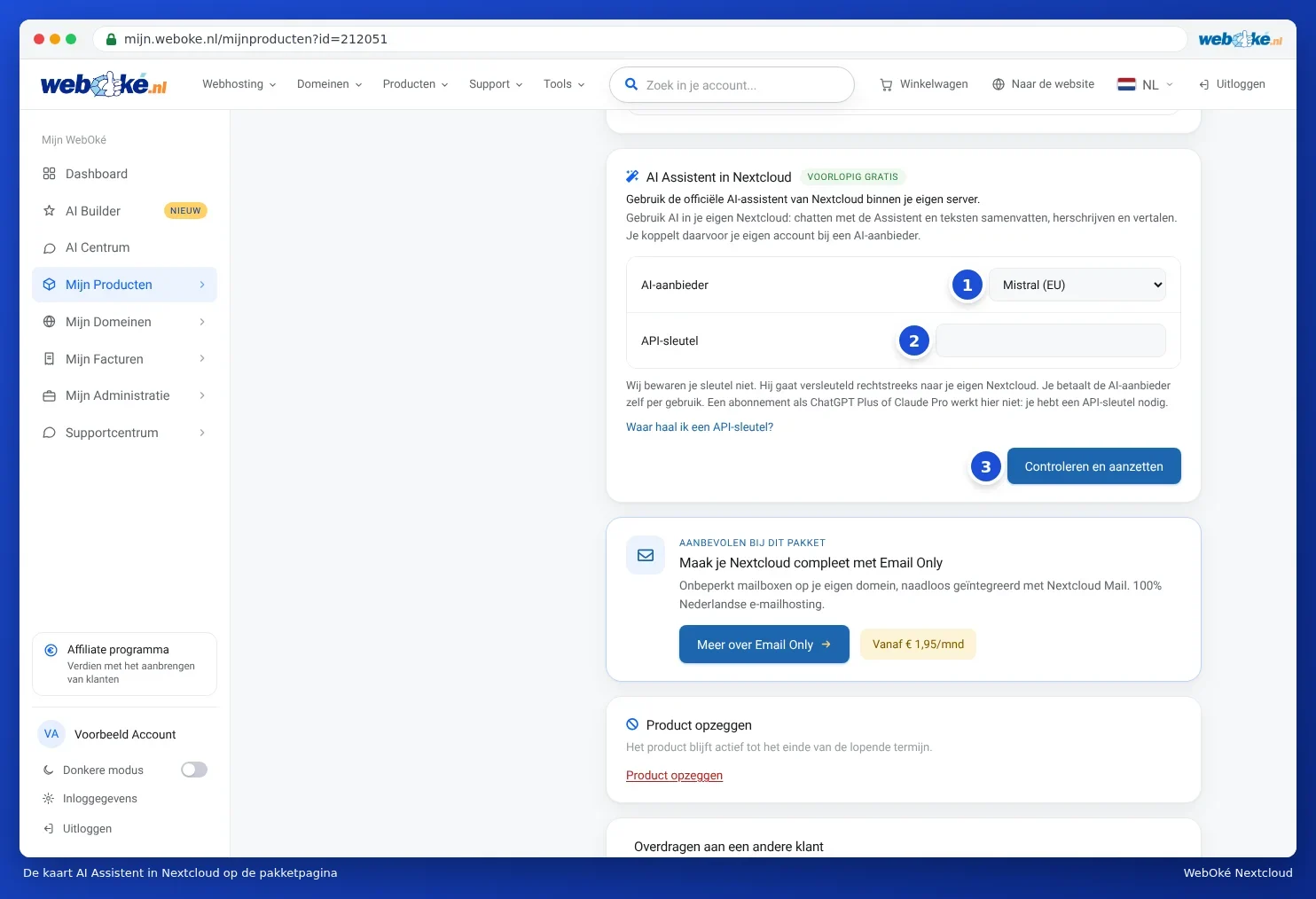
How to turn it on
- Open the package page in My WebOké and go to the AI Assistant in Nextcloud card.
- Choose your provider under AI provider (1).
- Paste your key into the API key field (2).
- Click Check and turn on (3). We check the key with the provider and set everything up. This usually takes less than a minute.
- You will now see which provider and which model the AI is running on. Open your Nextcloud and choose the Assistant.
Want a different model? Choose it under Model and click Save model. Only the account owner can turn AI on or off.
Messages
| Message | What to do |
|---|---|
| This does not look like a valid API key. | Copy the key again, in full and without spaces. |
| The provider does not accept this key. | Check the key and your credit with the provider. |
| No usable models are available with this key. | Check with the provider which models your account is allowed to use. |
| Too many attempts. Please try again in an hour. | Wait an hour. |
Privacy
We do not store your key. It goes encrypted straight to your own Nextcloud. The texts you give to the AI go to the provider you choose. If you want everything to stay in the EU, choose Mistral.
A separate key per user
Every user of your Nextcloud can also set their own key in Nextcloud, under Settings, in the section on artificial intelligence (AI).
Turning it off
Click Turn off AI on the card. Your key is then removed from your Nextcloud and the Assistant disappears. Your files remain unaffected.
Also read our knowledge base article Using AI in your Nextcloud with your own API key.