
Chapter 11 · 11.6
Analytics: data in charts
Available in packages with Office. You can use Analytics if you have your own Office Suite licence. Users in your package without a licence won't see the app. The administrator of your package assigns licences in My WebOké, see Assigning and ordering extra Office licences.
With Analytics, you create reports with charts from data you already have: a csv file or spreadsheet in your Nextcloud, a table from Tables or a source on the internet. Handy for things like membership numbers per year, turnover per month or your home's meter readings.
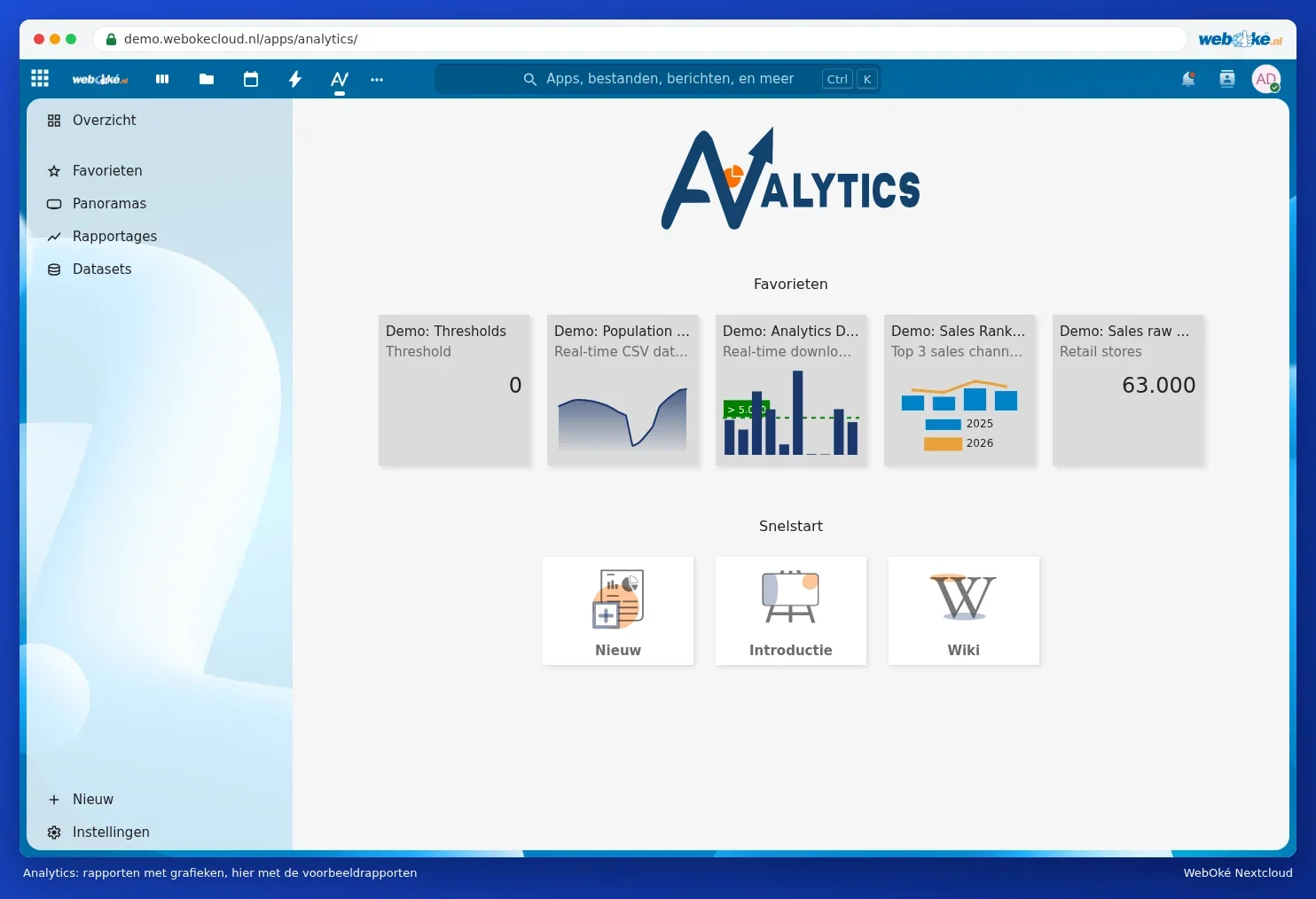
The screen
- Overview: your favourite reports and the quick start.
- Reports: all your reports. Each report shows a chart and the accompanying table.
- Panoramas: several reports together on one page, like a dashboard.
- Datasets: data that you maintain in Analytics itself and use in several reports.
Creating a report
- Click New (bottom left or under Quick start).
- Choose the source, for example a csv file from your Nextcloud, and give the report a name.
- Choose the type of chart: bar, line, pie or just a table.

With Introduction under Quick start, you get a short tour. The demo reports show you what's possible.
Tip: for most people, a chart in a spreadsheet from Euro-Office is simpler. Analytics is handy if your data keeps changing, for example a csv file that's updated every month: the report then updates automatically.