
Chapter 13 · 13.3
Moving Dropbox across with Data Migration
With Data Migration, you can bring all your files and photos from Dropbox to your WebOké Nextcloud. You link your Dropbox with an access code, choose a folder and the server does the rest.
Please note: you cannot choose which files come across. Data Migration brings everything in your Dropbox. If there's something you don't want to bring over, remove it from Dropbox first, or tidy it up afterwards in Nextcloud.
How to move Dropbox across
- Log in to dropbox.com, so that you're already logged in when you link your Dropbox later.
- Log in to your WebOké Nextcloud, click your profile picture at the top right and choose Settings.
- Click Data Migration on the left.
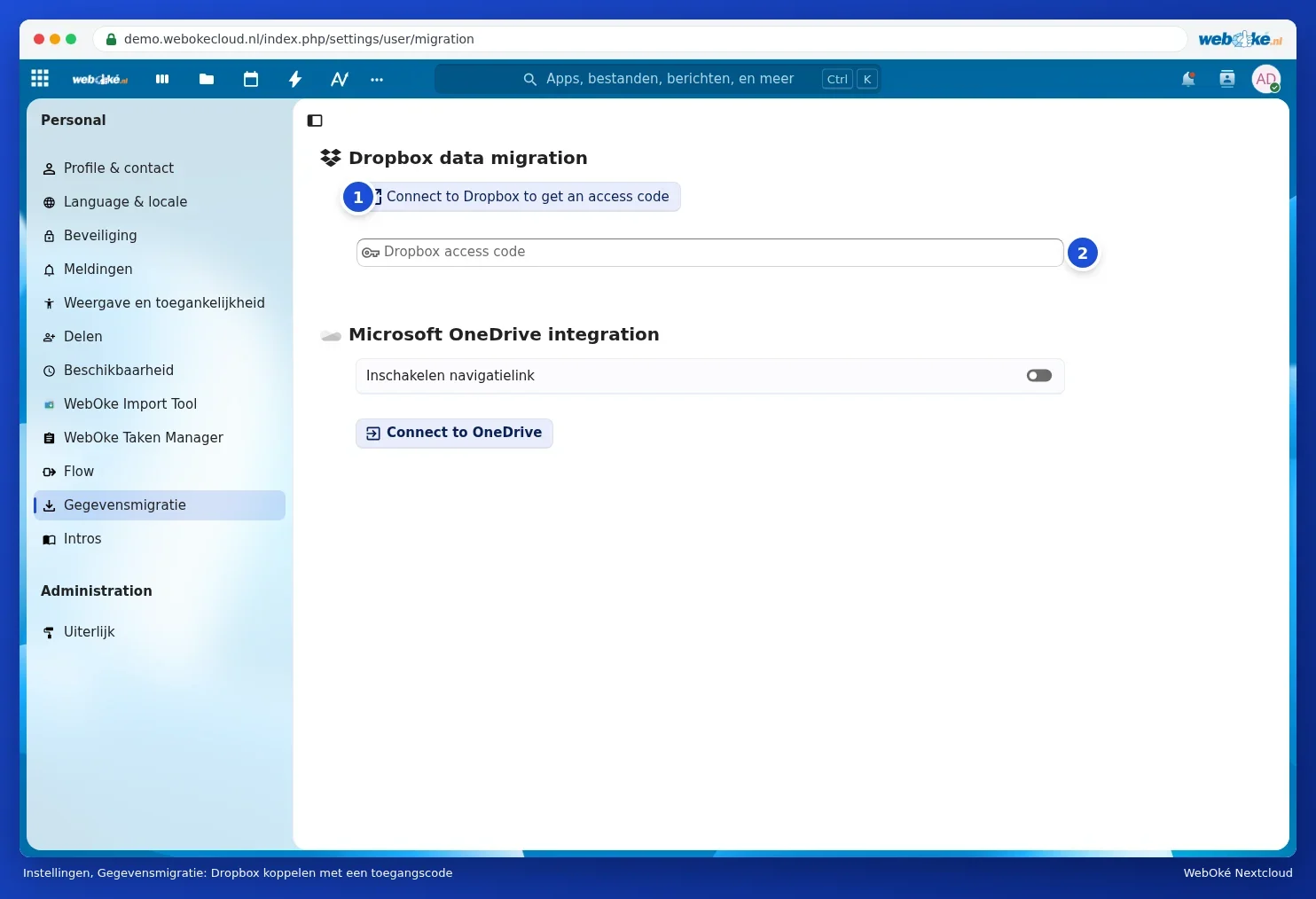
- Under Dropbox data migration, click Connect to Dropbox to get an access code (1).
- Dropbox opens in a new window. Click Allow.
- Dropbox shows an access code. Copy this code.
- Go back to Nextcloud and paste the code into the Dropbox access code field (2).
- Choose the Importdirectory: the folder in Nextcloud where your Dropbox files will go. Click the pencil to choose a different or new folder.
- Start the import with the button for importing your Dropbox files.
How long does it take?
Anywhere from a few minutes to a few hours, depending on how much you have in Dropbox. You can close the window: the server keeps working in the background. If you come back to the Data Migration page later, you'll see whether the import is still running.
Tip: do you use the Dropbox app on your computer? Turn it off once the import is finished and you've checked that everything's there. Then install the Nextcloud desktop app (Installing Nextcloud Files on Windows).
This explanation is also available in our knowledge base article Migrating from Dropbox to WebOké Nextcloud.