
Chapter 16 · 16.16
Remotely locking down a stolen laptop
Your laptop has been stolen or lost, and it has the Nextcloud Files desktop app installed with your files on it. These steps make sure the thief can't get into your Nextcloud, and that the files on the laptop are wiped as soon as it comes online again. Do this as soon as possible, from another computer or your phone.
Step 1: log in from another device
Log in to your Nextcloud in a browser on another computer or on your phone. Do you need the code by e-mail and was your mail only set up on the laptop? Then read your mail via your e-mail provider's webmail, or use your authenticator app or a backup code (Lost your phone or lost 2FA: here's how to get back in).
Step 2: find the laptop under Devices & sessions
- Click your profile picture, choose Settings and click Security on the left.
- Scroll to Devices & sessions.
- Find the row for the desktop app on your laptop. Check the name and the last activity. If you're not sure between two rows, deal with both of them.
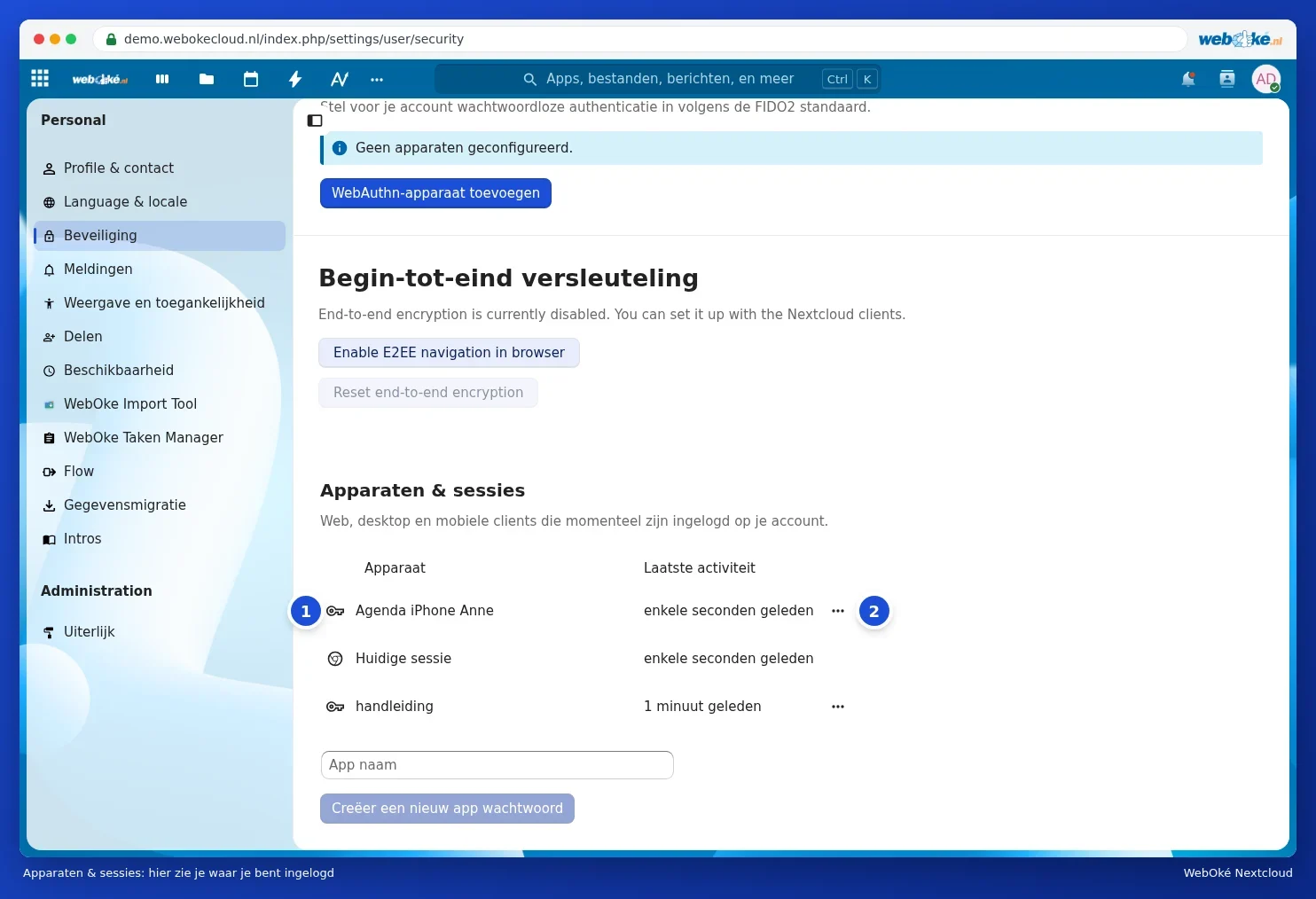
Step 3: choose Wipe device
Click the three dots next to the laptop and choose Wipe device.
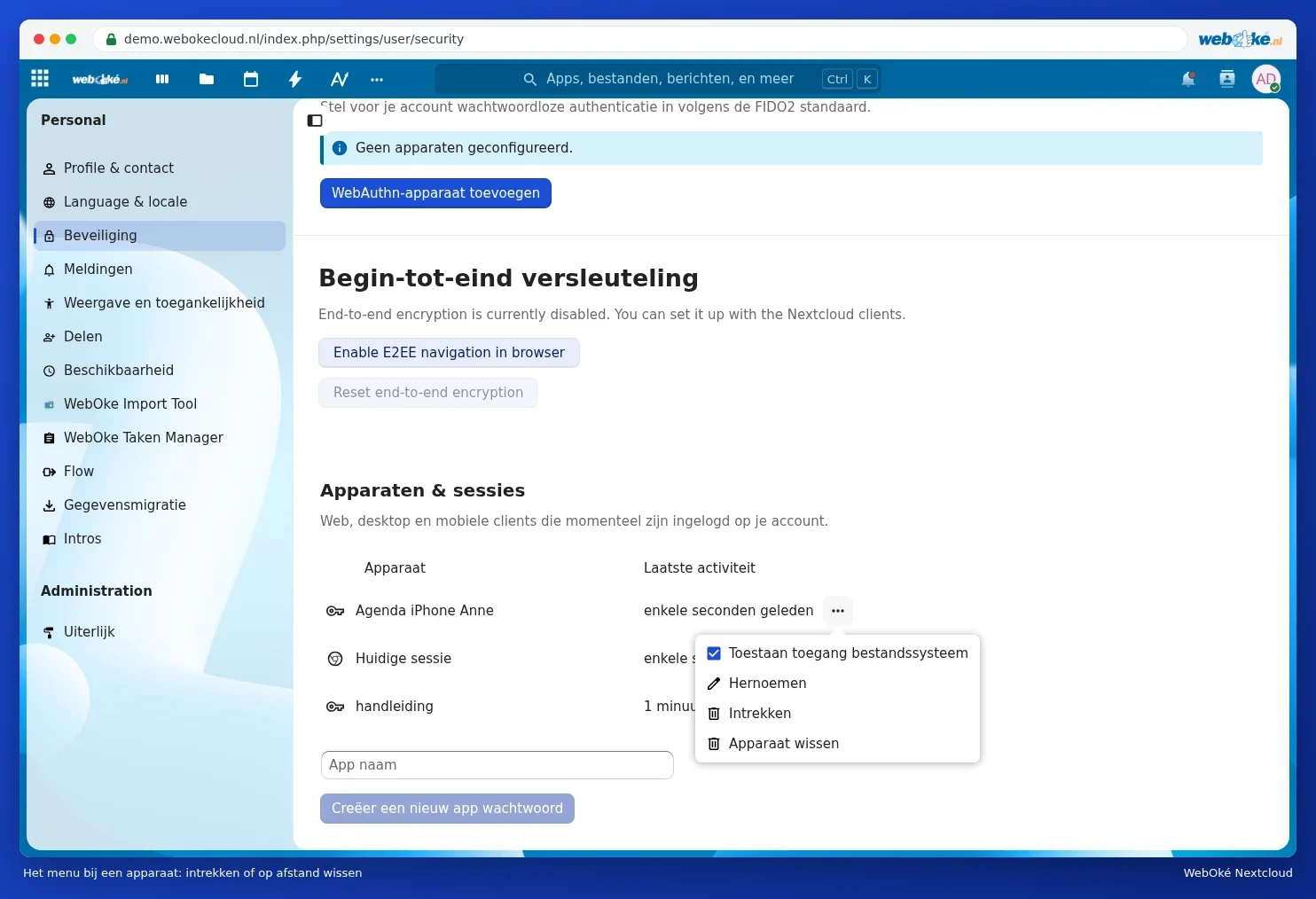
What happens next:
- The laptop can no longer access your Nextcloud from now on.
- As soon as the desktop app on the laptop connects to the internet again, it's told to log out and delete the Nextcloud files it has synced from the laptop.
- Your files in your Nextcloud itself stay exactly where they are. Nothing is lost.
Please note: wiping only happens once the laptop comes online and the desktop app starts. If that never happens, the files that were already on the laptop stay there. If the laptop was encrypted with a password (BitLocker on Windows, FileVault on Mac), a thief won't be able to get at them anyway. Turn this on for your new laptop.
Step 4: revoke anything else that was on the laptop
Did the laptop also have other apps with access to your Nextcloud, such as Thunderbird with an app password, or a browser that stayed logged in? Revoke those rows too with Revoke.
Step 5: change your passwords
- Change your Nextcloud password (Changing or forgetting your password).
- Change the password of your mailbox, since that's where your login codes arrive.
- Did your browser save passwords on the laptop? Change those for your most important accounts too.
Step 6: check your shared links
Public links you've created keep working; no login is needed for those. In Files, check under Shares, under Shared by link, for any links you'd rather revoke, especially if that link's password was stored on the laptop. See Creating a public link: viewing, editing, password, expiration date and download limit and Shared with you: overview, declining and re-sharing.
Business use
If you use Nextcloud for your business or organisation, report the theft to the administrator of the package as well. If the laptop had personal data of others on it, you may also need to report the theft to the relevant data protection authority. Check with the person responsible within your organisation.