
Chapter 9 · 9.3
Password and expiration date on a link
A public link is handy, but anyone who gets it can access it. With a password and an expiration date, you make the link more secure.
How to set it up
- Open the sharing sidebar of the file and click the three dots next to the link.
- Choose Customise link and click Advanced settings.
- Tick Set password (1) and type a password.
- Tick Set expiration date (2) and choose the date on which the link should stop working.
- Click Update share (3).

The same block contains more useful options. With Share label, you give the link a name, for example "Link for the client", so you know later what it was for. Hide download removes the download button, and with Limit downloads you set how many times the file may be downloaded. Under Note to recipient, you add a short explanation that the recipient will see.
When someone opens the link, your WebOké Cloud first asks for the password. Only then does the document open.
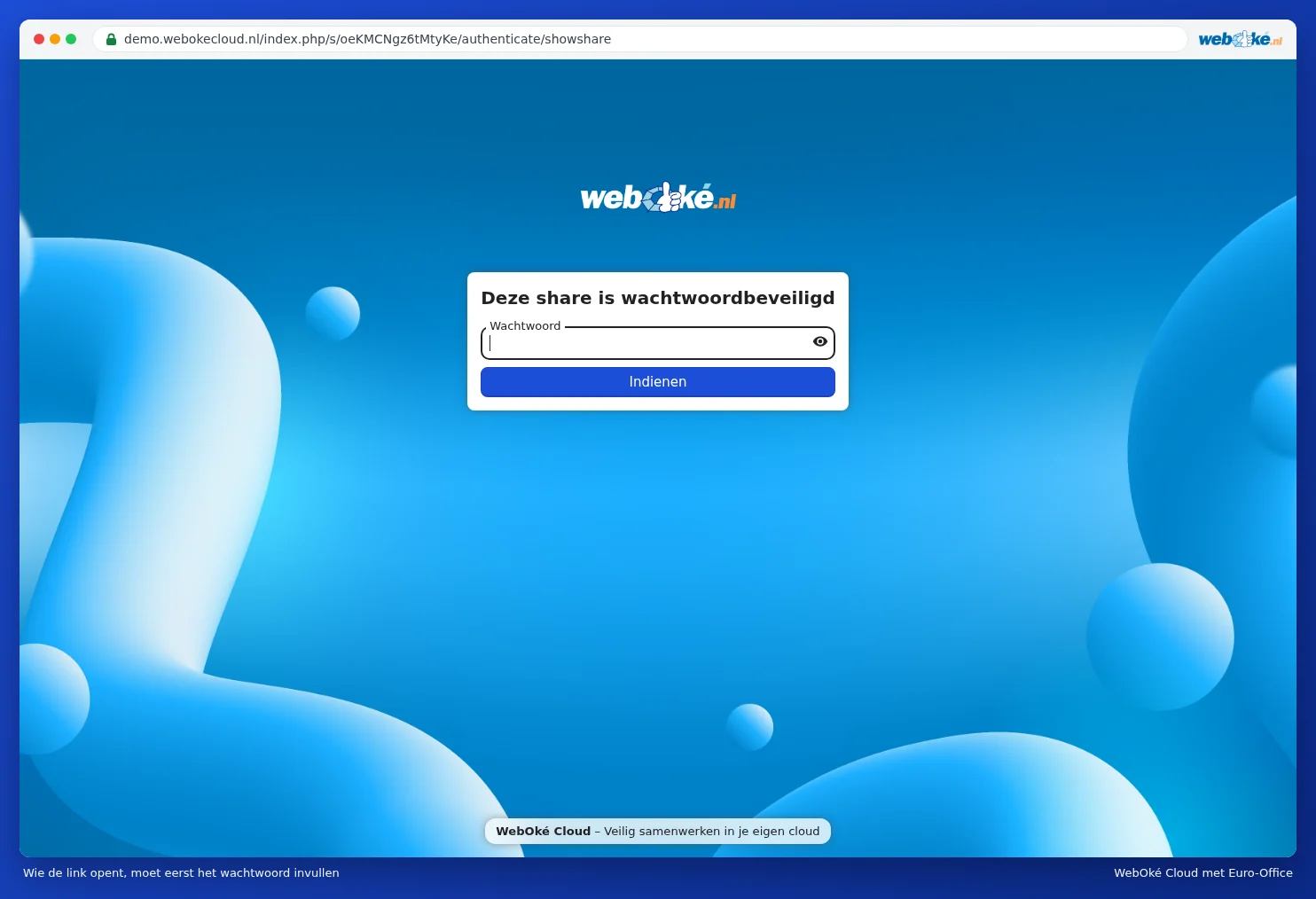
Tip: don't send the password in the same message as the link. For example, email the link and send the password via text message or WhatsApp, or agree on it over the phone.
After the expiration date, the link stops working. So you don't need to remember to remove it yourself. If you want to stop it earlier, choose Unshare from the link's menu.